Kontivo: user guide
for Active Directory
User accounts in Active Directory, from a spreadsheet or a CSV file from any source (HR software, ERP, another directory…), or from a school export (SIECLE, ONDE, Pronote, EcoleDirecte).
Version 3.0.0 · October 2026 · for the directory administrator.
1. What the tool does
Kontivo reads the list of users exported by your organization (from HR software, an ERP, another directory, a spreadsheet or school software) and keeps their accounts up to date in Active Directory (the network directory). At each import:
- it creates the accounts of new users, with a username based on the template you chose (for example
lea.martin) and a temporary password printed on an account sheet; - it moves users who changed group to their new group: directory group and directory folder (OU);
- it updates the display name of a user whose name changes; their username does not change;
- it disables the accounts of users who have left and moves them aside, to a “Leavers” folder; they are deleted later, after a period you choose (90 days by default);
- it re-enables the account of a user who comes back;
- it creates the home folder of each new user on the network share and gives them permissions, if you specify a path template (
\\srv\people$\{sam}).
Before each import, the tool shows a preview of all the changes. You can uncheck a line, correct a username, answer the questions. Nothing is written to the directory until you click “Apply the changes”.
What the tool does not do:
- it only manages the users in the imported list, in the folders you entrust to it;
- it does not touch Microsoft 365, the digital workspace (ENT) or the email system;
- it never changes an account it did not create or take over (see § 15), nor an administrative account;
- it sends nothing over the Internet: the user file is read on the computer where the tool runs, and the tool does not connect to any outside service. The only exception is the button, and only when you click it; it downloads the license and nothing else (see § 3.2).
The tool opens in its own window, Kontivo, like an ordinary Windows program: no browser, no PowerShell window. Everything happens on your computer. To stop it, click , at the top right, or close the window.
The window is in French, English, German, Spanish, Portuguese or Italian, depending on the Windows language or the one you choose (see § 5, “Interface language”). This guide exists in the same languages.
2. Before you start
You need:
- A Windows computer in the domain: preferably an administration computer running Windows 10 or 11. A domain controller also works, but Windows limits rights there (User Account Control). RSAT is no longer needed: V2 reaches the directory over LDAP, without the Active Directory module or PowerShell.
- .NET Framework 4.8, and nothing else: it is already present on Windows 10 (since version 1903), Windows 11 and Windows Server 2019 to 2025. On Windows Server 2016, it is installed once (Windows Update, or Microsoft's “.NET Framework 4.8” installer); the tool reports it at startup if it is missing. No browser is needed: Kontivo opens in its own window (only the help, this guide, opens in the program that reads web pages on the computer).
- A Windows account with the right permissions on the user folders in the directory. The best choice is a delegated account, which only has rights on these folders: see Delegating rights. The rights to delegate are exactly those of V1: no additional right is ever requested.
- The organization's license: the
licence.jsonfile sent by email (tied to the organization's ID and domain), one license per Active Directory domain, under an annual subscription. Without a valid license, the tool starts in read-only mode (preview available, no changes) and says so; see § 3.2 and § 6. - The list of users: a spreadsheet or a CSV file from any source, with at least each person's last name, first name and group (see § 7.1); for a SIECLE, ONDE, Pronote or EcoleDirecte export, see Recognized school formats.
- The approval of the head of the organization, and the record of processing activities filled in with your data protection officer: see GDPR record sheet (in French).
SmartScreen at first start
The tool is a single file, ComptesAD.exe. The first time a downloaded exe is started, Windows may display (SmartScreen). Click , then . If the exe is signed with a certificate known to your organization, this warning disappears once the reputation is established. In all cases, check the SHA-256 hash of the exe before running it (see § 3.1): it is what guarantees that the file has not been modified.
Antivirus and endpoint security
The exe is obfuscated (its code is scrambled to hinder reverse engineering): some antivirus or EDR products may find it “suspicious” even when it is signed. If the tool is blocked, notify your chief information security officer (CISO) and have an exception added for the published SHA-256 hash. A signed but non-obfuscated exe can be provided on a case-by-case basis for a stubborn EDR (same behavior, with its own published hash for that variant).
3. Installation
The tool is not installed: it is a file that you copy, with its docs\ folder. The only thing it writes to the registry is the language chosen in the Settings, for your Windows account (§ 5, “Interface language”).
3.1 Check the hash, unblock, then extract
- First check the hash of the archive: the
ComptesAD-3.0.0.zip.sha256file delivered with it contains the expected value. In PowerShell, in the folder that contains both files:
The answer must be(Get-FileHash .\ComptesAD-3.0.0.zip).Hash -eq (Get-Content .\ComptesAD-3.0.0.zip.sha256).Split(' ')[0]True(uppercase and lowercase do not matter). The download page also publishes the hash of the signed exe itself, to check again after extraction:(Get-FileHash .\ComptesAD\ComptesAD.exe).Hash. - Before extracting: right-click
ComptesAD-3.0.0.zip, , check at the bottom of the tab, then . Otherwise, Windows marks each extracted file as “from the Internet” and SmartScreen warns at first start (see § 2). - Extract the archive: you get a
ComptesAD-3.0.0folder containingComptesAD.exe,LISEZMOI.txt(in French),README.txt(in English),LICENCE.txt,docs\(the guides, one folder per language, see below) andexemples\(files of made-up users, for demo mode, § 4). Rename it and place it directly underC:\, on the local disk, to getC:\ComptesAD\. Not on a share or a network drive: the tool then refuses to start (“Kontivo is running from a network drive (Z:\ComptesAD). Copy ComptesAD.exe to the computer's local disk, for example to C:\ComptesAD, then start it again.”). Keepdocs\next to the exe: the button of the window opens the guide in the interface language, for exampledocs\en\Notice.html.
The docs\ folder contains one folder per language: fr (French), en (English), de (German), es (Spanish), pt (Portuguese) and it (Italian). Each one contains Notice.html (this guide), Deleguer-les-droits.html, LISEZMOI.txt and the screenshots (img\). The pages that only exist in French, Exporter-les-eleves.html and Fiche-registre-RGPD.html, are in docs\fr\.
3.2 Install and update the license
Place the licence.json file received by email in C:\ComptesAD\, next to the exe. You can also choose it from the Kontivo window, with the button on the License screen (below): the tool then copies it to the data folder and checks it again. Without a valid license, the tool starts in read-only mode and says so (blue banner, “No license – preview available, no changes will be made.”); demo mode does not require one.
The subscription. A license covers one Active Directory domain; the subscription renews automatically every year. The license is valid until the end of the paid period, plus a 14-day grace period. After that, the tool switches to read-only mode: the preview remains available, but no change is made to the directory. Payment is by card, online, or by invoice (bank transfer, for public bodies); in that case, a provisional 60-day license is sent to you while the payment is pending.
The License screen. On the home screen, the link is always visible. The screen it opens shows the license status, the organization, the license number, the end date (“Valid until”, with the number of days remaining), the domain of this directory, and the full message of the check. In demo mode, it only says that no license is needed. Two buttons:
- (main button): downloads the latest license of your subscription from the license service,
https://licences.scolatools.com, for example after the annual renewal or a payment by invoice. The connection uses HTTPS, with Windows' usual certificate check, and goes through the proxy configured in Windows. It sends only the Active Directory domain and the number of the license in place: no user data. The license received is installed only after a full check (signature, domain, dates); a refused license never overwrites the one in place. The button stays greyed out as long as no license is installed: the first one is installed from a file. - : for a computer without Internet access, choose the
licence.jsonfile received by email or downloaded from your customer area.
The license installed with either button is copied to the data folder (C:\ProgramData\ComptesAD\licence.json, § 3.9). A licence.json placed next to the exe is still recognized.
The screen also shows the address of your customer area, https://licences.scolatools.com/espace: your licenses, your invoices, the domain change (once per subscription period) and the billing portal. It opens in a browser, from any computer.
The button is Kontivo's only Internet connection, and it happens only when you click it: never at startup, never in the background. On a computer without Internet access, use : everything else works the same way.
3.3 Protect the tool's folder
At first start, the tool checks who can modify its folder and its exe. If an account that is not an administrator can write to it (which is the case for a folder created directly under C:\, where “Authenticated Users” can modify files), it refuses to start: someone could replace the exe with code that would run with your rights.
The window then displays: “The folder C:\ComptesAD can be modified by ‘Authenticated Users’. Someone could place code there that would run with your rights. Fix it in a command prompt or PowerShell window opened as administrator, with the command below, then start again.”, then, alone on its line, the exact command to type, with the correct security identifier (SID) of your account. It looks like this:
icacls "C:\ComptesAD" /inheritance:r /grant:r "*S-1-5-32-544:(OI)(CI)F" "*S-1-5-18:(OI)(CI)F" "*S-1-5-21-…:(OI)(CI)RX"Copy the command displayed by the tool, paste it into a command prompt or PowerShell window opened as administrator, then start the tool again. Each permission is in quotation marks: the command works as is in both. It gives full control to administrators and to the system, and only read access to the account that started the tool. The check covers the folder, the ComptesAD.exe exe, its ComptesAD.exe.config configuration file if present, and the docs\ folder.
The same check covers the data folder C:\ProgramData\ComptesAD when it was created manually with permissions that are too broad. The command proposed for this folder ends with (OI)(CI)F": your account must be able to write to it. If this folder belongs to an account that is neither an administrator nor yours, the tool proposes icacls "C:\ProgramData\ComptesAD" /setowner "*S-1-5-32-544" /T. This folder must be on a fixed local disk: otherwise, “The folder C:\… is on a network drive: it would contain the organization secret and user data (DONNEES_SUR_PARTAGE). Specify a folder on the computer's fixed local disk, for example ComptesAD.exe -DossierDonnees "C:\ComptesAD-donnees", then start again.” (or “a network share”, “removable media (USB drive, external disk)”, “a CD or DVD”).
Do this first start with the account that will use the tool (the delegated account, see below): the command displayed then contains its SID. If an administrator types it for their own account, the delegated account will no longer be able to read the folder.
The data folder belongs to the Windows account that created it: the organization secret is encrypted there for that account only (Windows DPAPI protection). If another account starts the tool with the same folder, it does not start: “The data folder C:\ProgramData\ComptesAD was created for another Windows account (owner: DEMO\adm-a): your account cannot access it. Kontivo reserves each data folder for a single operator, because the organization secret is encrypted there for that operator. Either start the tool again with that account, or have an administrator transfer the folder to you in a command prompt or PowerShell window opened as administrator, with the command below (the former operator will lose access, and the secret, encrypted for them, will have to be imported again from a configuration export), or delete this folder if it contains nothing useful. Then start again.”, followed by the command icacls "C:\ProgramData\ComptesAD" /inheritance:r /grant:r "*S-1-5-32-544:(OI)(CI)F" "*S-1-5-18:(OI)(CI)F" "*S-1-5-21-…:(OI)(CI)F" /T. Before transferring the folder, export the configuration with the secret from the owner account (§ 12), then import it with the new account. If it is the tool's folder that was reserved for another account, the message is “Your account cannot read the tool's folder C:\ComptesAD (owner: …): its permissions were set for another Windows account. An administrator can give you read access in a command prompt or PowerShell window opened as administrator, with the command below; then start again.”, with a command using RX and /T.
3.4 Which account to use
The tool acts in the directory with the Windows account that starts it. It never asks for a password to act in the directory; only unlocking its window after a period of inactivity asks for the password of the account that started it (§ 3.5).
- Recommended: a delegated account (for example
DEMO\adm-comptes), which only has rights on the user folders. See Delegating rights. It does not need any administrator rights on the computer. - A “Domain Admins” account also works, but the tool then displays the tip “use an account delegated on the users OUs only”.
To start the tool with the delegated account while you are signed in with another account:
- hold down the Shift key, right-click
ComptesAD.exe, choose , then enter the delegated account and its password; - or, in a command prompt:
runas /user:DEMO\adm-comptes "C:\ComptesAD\ComptesAD.exe"Options go inside the quotation marks, after the path of the exe: runas takes only one program argument (for example runas /user:DEMO\adm-comptes "C:\ComptesAD\ComptesAD.exe -LectureSeule", see § 6). The Kontivo window stays open and displays the message if the tool refuses to start: you can read the reason and copy the command it proposes.
Started with another account, the tool only sees that account's files. Kontivo then runs under the delegated account: your Downloads folder, your Desktop and your documents are off limits to it, in the “Open” dialog box as well as by drag and drop. Copy the list of users to a folder that the delegated account can read (for example C:\Temp\import), and delete it after the import. The files that the tool exports (configuration, CSV preview) are saved where you choose in the “Save As” dialog box, which opens on the folders of the delegated account. On the Logs screen, the path is displayed next to the button (“Logs folder: C:\ProgramData\ComptesAD\journaux”): copy it if the File Explorer window that opens is not the right account's.
The account sheets (temporary passwords) are encrypted for the Windows account that ran the import: always use the same account to import and to reprint the account sheets.
3.5 Start the tool
Double-click ComptesAD.exe (or start it with the delegated account, see above). The Kontivo window opens directly, at a size of 1,280 × 800 (or the size of the screen if it is smaller); you can move, maximize or minimize it like any window. There is no browser, no link to copy and no second window to keep open.
The top banner always reminds you where you are: “Domain DEMO · domain controller DC1 · account DEMO\adm-comptes” (orange “DEMO MODE” in demo mode, blue “READ-ONLY” in read-only mode). On the right, opens this guide, in the interface language, and stops the tool. Everything can also be done with the keyboard: Tab moves from one control to the next, Enter runs the main action of the screen, Space checks a box; the screens can be read with Windows Narrator.
To stop, click , at the top right, or close the window (close button, Alt+F4): the tool asks “Quit Kontivo?”. During a run, closing first offers to pause the run: it stops cleanly and can resume at the next start (see § 13). If you sign out of Windows or shut down the computer during a run, Windows displays “Kontivo is applying a plan: pause the run in Kontivo before signing out (it can resume later).”: the tool holds back the sign-out long enough to pause the run; then sign out again.
If you start ComptesAD.exe again while it is already open, no second window opens: the window that is already open comes back to the foreground.
Lock after inactivity. After 30 minutes without keyboard or mouse activity, the window locks: “Kontivo is locked after 30 minutes of inactivity.” User data is hidden and the print preview is closed; a run in progress continues. Click and enter the password of the Windows account that started Kontivo, in the Windows credentials dialog box. After three refused passwords, the window stays locked: quit Kontivo and start it again. The delay is changed at startup: ComptesAD.exe -InactiviteMinutes 15 (from 1 to 1,440).
Startup options. They are typed after the path of the exe (inside the quotation marks of runas, § 3.4), or at the end of the of a shortcut:
-LectureSeule: nothing is written to the directory (§ 3.6 and § 6);-Mode Essai: the simulated directory (§ 4), with-AujourdhuiSimule YYYY-MM-DDto simulate another date (in demo mode only);-Serveur dc1.demo.local: the domain controller to use (§ 5.4);-DossierDonnees "C:\ComptesAD-donnees": another data folder, on a fixed local disk (§ 3.3);-InactiviteMinutes 15: the lock delay (above);-Langue en(orfr,de,es,pt,it): the interface language for this start, ahead of the one in the Settings (§ 5, “Interface language”). Any other value is refused: “Unknown language: ‘…’. Available languages: fr, en, de, es, pt, it.”;-Aide: the full list of options.
For example: runas /user:DEMO\adm-comptes "C:\ComptesAD\ComptesAD.exe -LectureSeule -Langue en".
The window follows the Windows light or dark theme, and high contrast; the screenshots in this guide are in the light theme, or in the dark theme if your page reader is set that way. They were taken in demo mode (orange banner, see § 4).
At startup, the Kontivo window may also report:
- “Information: Kontivo is running as administrator (elevated token). Elevation is never needed: double-click ComptesAD.exe with the delegated account instead, without ‘Run as administrator’.” Only run the tool as administrator on a domain controller;
- “Warning: Windows signed you in with a TEMPORARY profile (C:\Users\TEMP…). Everything stored in this profile, including the keys that encrypt the password sheets and the sheets themselves, will be lost when you sign out. Print the sheets before signing out, or have the profile repaired before applying a plan.”;
- the license status (see § 6): valid, or expiring soon, or read-only mode enforced; the details are on the License screen (§ 3.2).
3.6 Read-only mode for the first pass
For a first pass on your directory without changing anything, start the tool with the -LectureSeule option: C:\ComptesAD\ComptesAD.exe -LectureSeule (or, with the delegated account, inside the quotation marks of the runas command). The tool calculates the preview and shows it, but writes nothing to the directory. See § 6.
3.7 Migrating from V1 (PowerShell)
No data migration: V2 reads the same files and the same directory as V1. To move from V1 to V2:
- Quit V1 ( button).
- Copy
ComptesAD.exeand thedocs\folder toC:\ComptesAD. - Delete the old V1 files: the
.ps1,.psm1and.cmdfiles, and themodules\,simulation\andweb\folders. - Install
licence.json(see § 3.2). - Start the exe with the same account as before.
The C:\ProgramData\ComptesAD folder and its permissions are reused as is; your configuration, your secret, your marked accounts, your logs and your account sheets are kept. A plan interrupted by V1 can be resumed by V2 (same format, same 12-hour rule). An existing configuration (V1, V2) keeps its OU names, group templates and descriptions: the neutral V3 values (People, People-{classe}, “{classe} (managed by Kontivo)”…) only apply to a new installation. On first opening, V3 writes to configuration.json the description that the tool applied implicitly (“Élève {classe} (géré par ComptesAD)”), so no existing account changes.
3.8 Uninstalling
Delete the C:\ComptesAD folder. The organization's data (C:\ProgramData\ComptesAD) and the account sheets in %LOCALAPPDATA%\ComptesAD must be deleted separately, after exporting the configuration with the secret if you want to keep it (see § 12).
3.9 Where the tool stores its files
| Folder | Contents |
|---|---|
C:\ProgramData\ComptesAD\ | Settings (configuration.json), organization secret, register of retired usernames, logs, plans in progress, and the copy of licence.json installed from the License screen (file chosen or license updated, § 3.2). Created by the tool with permissions reserved for administrators, the system and your account. It must be on a fixed local disk: a share or a network drive is refused. |
%LOCALAPPDATA%\ComptesAD\Fiches\ | Account sheets (temporary passwords), encrypted for your Windows account. |
%LOCALAPPDATA%\ComptesAD\essai\ | All of demo mode (§ 4): settings, simulated directory, logs, account sheets (fiches\) and simulated home folders (dossiers\) of the demo, specific to your Windows account. |
The Windows registry (HKCU\Software\ComptesAD) | Only the Langue value: the interface language chosen in the Settings, for your Windows account on this computer (§ 5, “Interface language”). Nothing else is written to the registry. |
The tool's folder (C:\ComptesAD) | Nothing is ever written there, neither in real mode nor in demo mode (except the copy of licence.json if you place it there yourself). Printing the account sheets writes no file anywhere (§ 10). |
3.10 Prepare the home folder share
For the tool to create each user's home folder (§ 5.4), the share that holds them must exist on the file server. Kontivo prepares it in one go: an administrator of the file server copies ComptesAD.exe to it (for example to C:\ComptesAD) and types, on that server, in a command prompt or PowerShell window opened as administrator:
C:\ComptesAD\ComptesAD.exe -PreparerPartage -Dossier D:\People -Partage people$ -GroupeDelegue DEMO\GG-ComptesADWithout parameters, a small window asks for these values, with the (nothing is changed) and buttons. The tool creates the folder if it is missing, disables permission inheritance and sets the permissions needed (the delegated group can create and archive the users' folders; each user reaches their own folder without seeing the others'), creates the share with access-based enumeration, then displays the path template to paste into the settings, for example \\srv-fichiers.demo.local\people$\{sam}. It reports, line by line, what it did ([DONE]) and what was already in place ([OK]): you can run it again safely. Add -LectureSeule to check only, -Langue en (or another language) for the messages, and -GroupeEleves DEMO\People-All if the users have their own group (otherwise: “Authenticated Users”). Nothing is written to the directory and no license is required for this step. The details of the permissions set are in Delegating rights, § 6.
4. First start in demo mode
Before touching your directory, try the tool on a simulated directory: the “Demo Organization”, with fictitious sample files (up to about 400 made-up users). Nothing is changed in your real directory, and no domain controller is contacted.
- Start
ComptesAD.exein demo mode: in a command prompt,C:\ComptesAD\ComptesAD.exe -Mode Essai; or create a shortcut toComptesAD.exe(right-click, ), then, in its , add-Mode Essaiat the end of the , after the closing quotation mark. On a computer that cannot reach any domain, the Kontivo window also offers the demo on its own. The top banner is orange: “DEMO MODE: simulated directory, nothing is changed in your real directory”. - Click and follow the four steps (see § 5). In the tree of the simulated directory, the
People,LeaversandGroupsfolders already exist, underOrganization(these are the names of the demo directory: yours can be entirely different). - First import the fictitious file
exemples\rh-fictif.csv, delivered with the tool inC:\ComptesAD\exemples\: an HR-style export of 49 made-up people, with the columns Matricule (employee number), Nom (last name), Prénom (first name) and Service (department). The department becomes each user's group, and the employee number their external ID. - The same folder also contains samples of school formats: SIECLE, ONDE and Pronote exports, and spreadsheets (
.xlsx,.xls,.ods, with or without an ID, or one sheet per group). They are listed in Recognized school formats. All the names are made up. - Apply the changes, print a few account sheets, look at the log.
- To simulate a periodic update, start from the import of
exemples\rh-fictif.csv(if needed, , then redo the settings and this import). Quit Kontivo, then start it again at a later simulated date, for example a few months later:C:\ComptesAD\ComptesAD.exe -Mode Essai -AujourdhuiSimule 2027-07-06(date in YYYY-MM-DD format; the option only exists in demo mode). Then importexemples\rh-fictif-2.csv: the same fictitious organization later on, 41 people, with the same columns Matricule, Nom, Prénom and Service. 13 people have left, 3 have changed department and 5 have arrived: the preview proposes 13 leavers, 3 group changes and 5 new accounts (see § 8). The leavers exceed 25% of the accounts: the tool asks you to typeDISABLE 13before applying; this is intended. The screenshots in this guide were taken this way. After another sample file, this simulation makes no sense (other users, other organization).
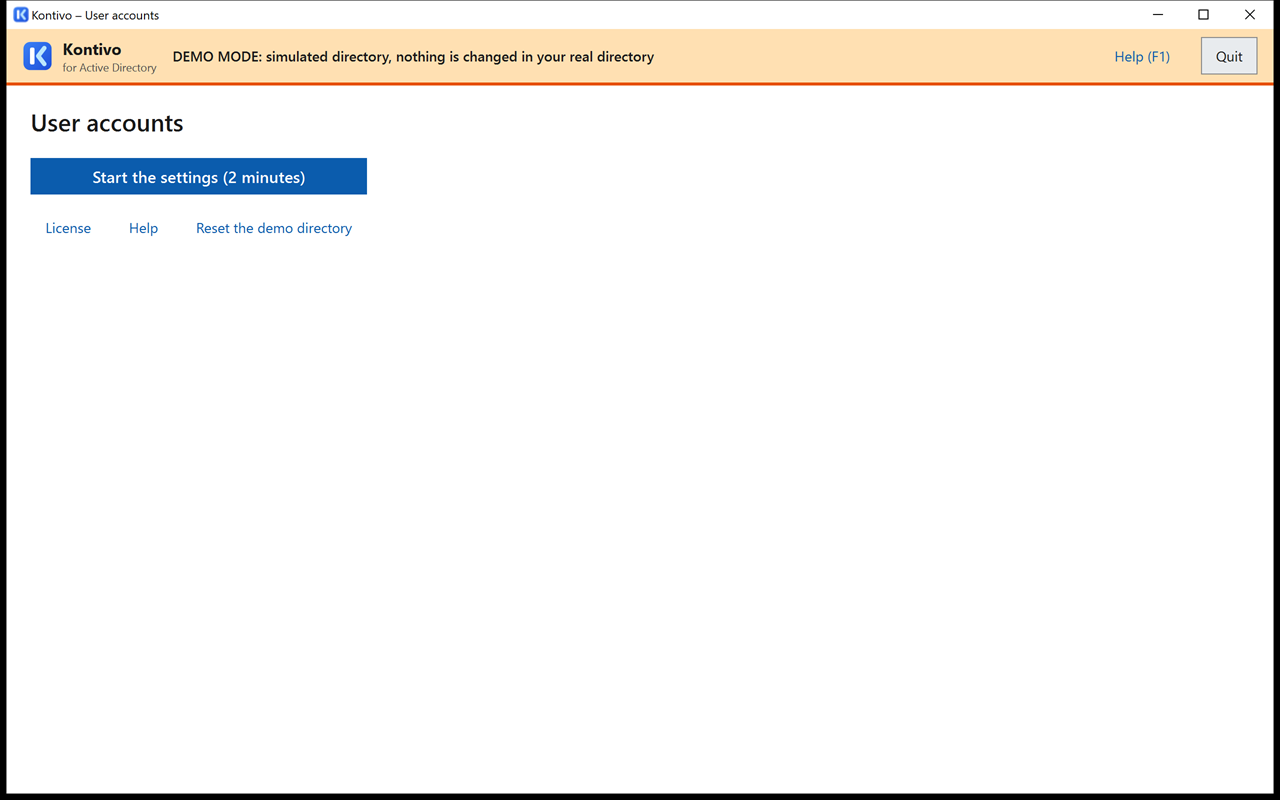
In demo mode, the settings, the logs, the account sheets and the simulated directory are stored in %LOCALAPPDATA%\ComptesAD\essai\, in your Windows account's profile, and the home folders are simulated in its dossiers\ subfolder. Nothing from the demo is therefore mixed with the account sheets of real mode, and nothing is written to the tool's folder: ComptesAD.exe -Mode Essai is enough, with any account, without “Run as administrator” and without a license. To store the demo elsewhere: ComptesAD.exe -Mode Essai -DossierDonnees "C:\ComptesAD-essai" (always on a fixed local disk: this is the example the tool gives if it refuses a network drive or a USB drive). The link erases all of this and starts again from the sample. The settings made in the demo are not used for the real directory: you will redo them in real mode.
5. The settings
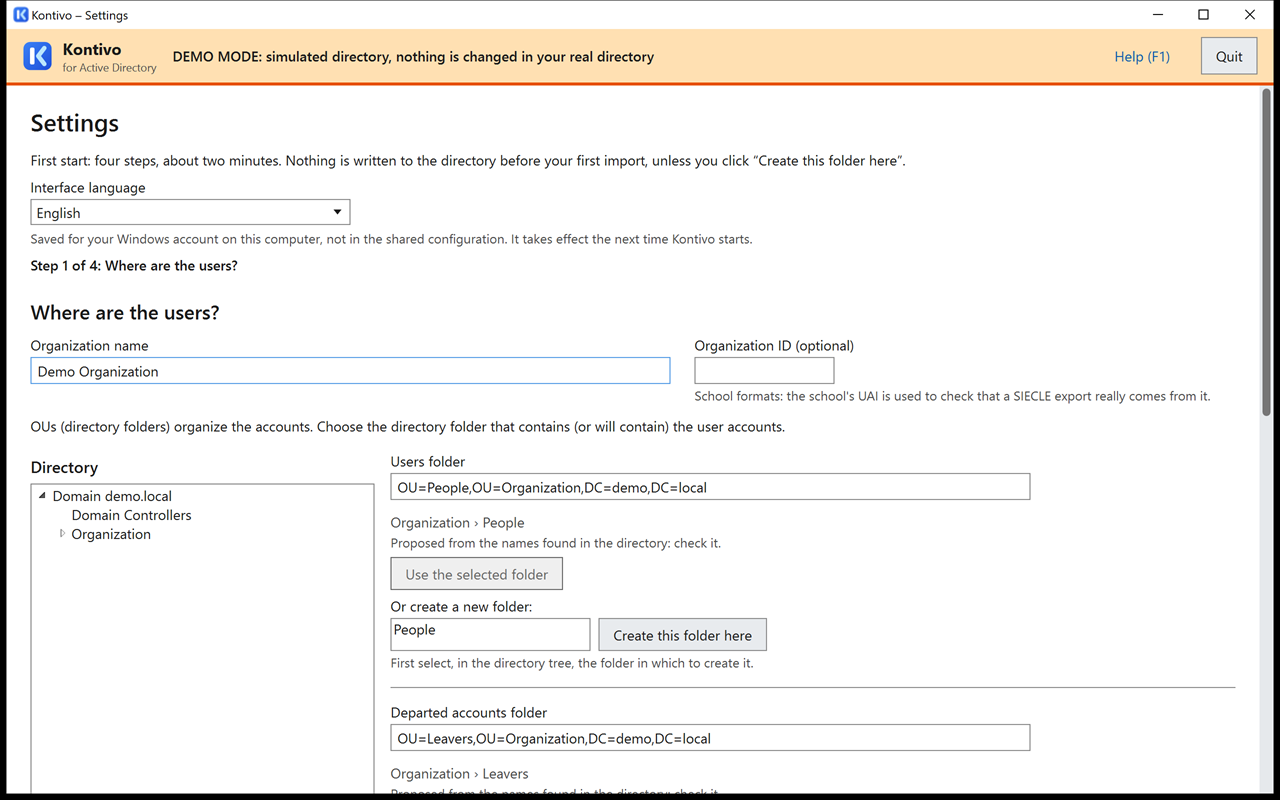
At first start, the settings are done in four steps (about two minutes). After that, they are presented on a single page with tabs ( from the home screen). They are kept from one import to the next and contain no user data. The screen says so at the top: “First start: four steps, about two minutes. Nothing is written to the directory before your first import, unless you click ‘Create this folder here’.”
Interface language
At the top of the screen, the list offers “Windows language (…)”, Français, English, Deutsch, Español, Português and Italiano. The screen points out: “Saved for your Windows account on this computer, not in the shared configuration. It takes effect the next time Kontivo starts.” The choice is stored in the registry (HKCU\Software\ComptesAD, value Langue), not in configuration.json: it does not follow the settings export, and each Windows account keeps its own. After a change, the screen displays “The chosen language will take effect the next time Kontivo starts.”
At startup, the tool takes, in this order: the -Langue fr|en|de|es|pt|it option (§ 3.5), then the language chosen in the Settings, then the Windows display language. If that language is not supplied, it uses English.
- Dates and numbers follow the language.
- The confirmation phrases to type are in the interface language:
DISABLE 20 AND MOVE 48in English,DÉSACTIVER 20 ET DÉPLACER 48in French…; as always, uppercase and accents do not matter (§ 7.4). - The data written to the directory does not depend on the language: account descriptions, OU names, the tool's markers (§ 15). Changing the language does not change any account.
- The CSV logs keep the same column headers; their messages are in the interface language (§ 11).
- The help () opens the guide in the interface language, in
docs\<language>\(§ 3.1).
5.1 Where are the users?
Enter the name of the organization (it appears on the account sheets) and, if you have it, its ID (optional): it is used to refuse a file that comes from another organization (see Recognized school formats).
Accounts are stored in directory folders, called OUs (organizational units). The tool uses three separate ones:
- Users folder: the accounts of current users, with, as you choose, one subfolder per group (recommended), one subfolder per level, or all users in the same place;
- Departed accounts folder: the “quarantine” of users who have left. It must be outside the users folder (the tool refuses it as soon as you choose the folder);
- Directory groups folder: the groups created by the tool. Reserve a folder for it (the proposed name is
Groups, which you can change): not the one where your other groups are stored.
At first start, the tool automatically fills in the three folders with OUs of your directory whose names resemble the proposed names (People, Leavers, Groups, or the V2 names, such as Eleves, Departs, Groupes…), and says so under each field: “Proposed from the names found in the directory: check it.” They may not be the right ones. Look at the full path displayed under each field (“Organization › People” in the demo directory) and change it if needed.
To choose a folder: in the directory tree on the left, click the name of a folder: it is selected and expanded (the ▸ arrow in front of the name only collapses or expands it), then click . If it does not exist yet, select the parent folder in the tree, type the name and click : the OU is created immediately, protected from accidental deletion.
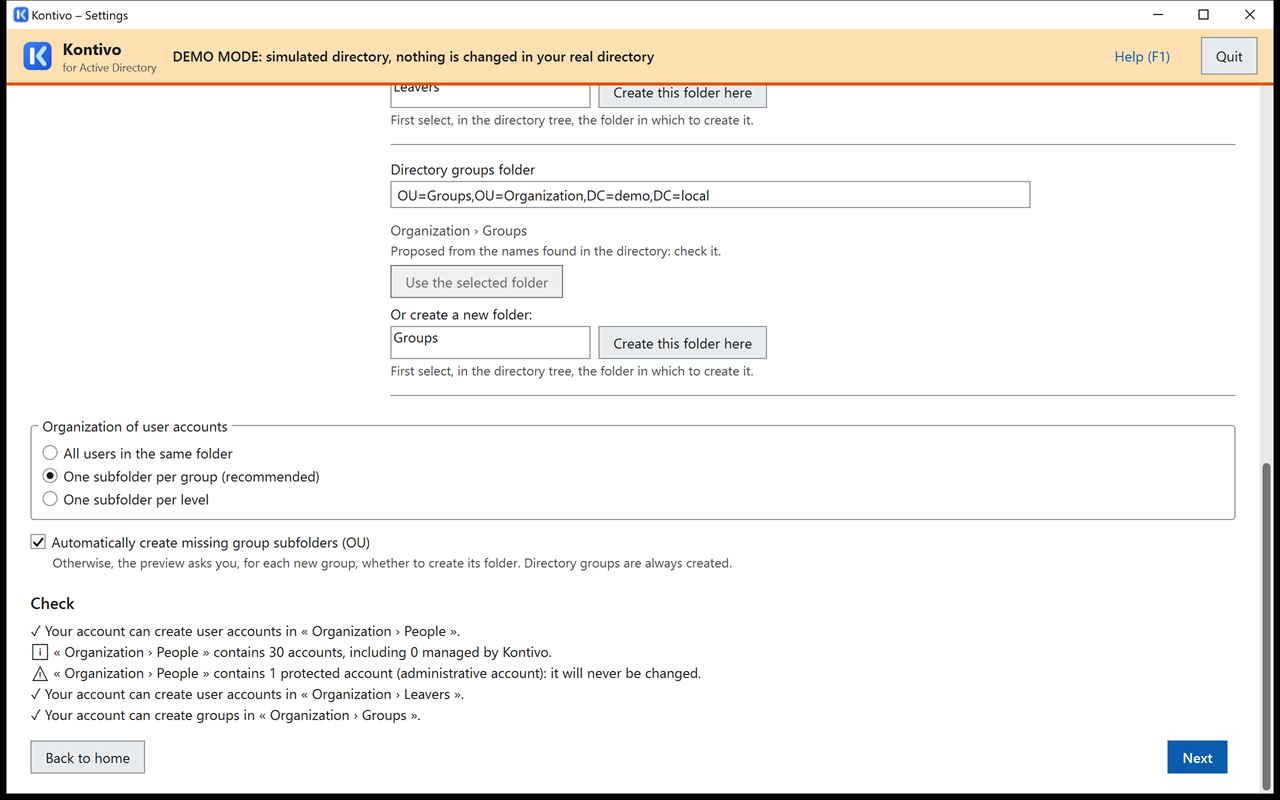
The check box is checked by default: at import, the tool creates the OU of a new group. If you clear it, the preview asks you, for each missing group OU, whether to create it. Directory groups, on the other hand, are always created when they are missing.
At the bottom of the step, the check tells you, for each folder, identified by its full path (“✓ Your account can create accounts in ‘Organization › People’”), whether your account can create accounts or groups there, and how many accounts it already contains. An administrative account stored by mistake in the users folder is reported: it will never be changed.
If a synchronization tool to Microsoft 365 (Entra Connect) is detected, an orange box warns you: if the “Leavers” folder is outside the synchronized scope, the Microsoft 365 account of a user who has left (OneDrive, Teams) will be deleted. Check this point with the person who manages the synchronization.
5.2 Usernames and names
The username is the user's sign-in name. Choose a template; the example next to each choice is calculated live, and the table on the right shows the result for twelve fictitious users with difficult names (accents, particles, compound names, same names).
| Label on screen | Template | Examples |
|---|---|---|
| firstname.lastname (recommended) | {prenom}.{nom} | jean-pierr.leglaunec (shortened to 20), lou.brizard |
| lastname.firstname | {nom}.{prenom} | leglaunec.jean-pierr (shortened), brizard.lou |
| first initial.lastname | {p}.{nom} | j.leglaunec, l.brizard |
| first initial + last name | {p}{nom} | jleglaunec, lbrizard |
| last name + first initial | {nom}{p} | leglaunecj, brizardl |
| lastname.first initial | {nom}.{p} | leglaunec.j, brizard.l |
| last name (7 letters) + first initial | {nom:7}{p} | leglaunj, brizardl |
| first name + last initial | {prenom}{n} | jean-pierrel, loub |
| firstname.last initial | {prenom}.{n} | jean-pierre.l, lou.b |
Custom template: choose “Custom template…” and type your template with these tokens:
{prenom}and{nom}: the first name and the last name, without accents or spaces;{prenom:3},{nom:5}: the first 3 (or 5…) letters;{p}and{n}: the first-name initial and the last-name initial;{aa}or{annee}: the year of the period in which the account was created (26or2026for the 2026-2027 period), which no longer changes afterward. In June and July, it is already the year of the upcoming period;- between tokens: letters from a to z, digits, period, hyphen and underscore.
The template must contain the last name ({nom}, {nom:N} or {n}) and start with a letter or with a last-name or first-name token. {classe} and {niveau} are refused: the username would change at each change of group. A very short template is accepted with a warning: “Many users with the same name: frequent suffixes.”
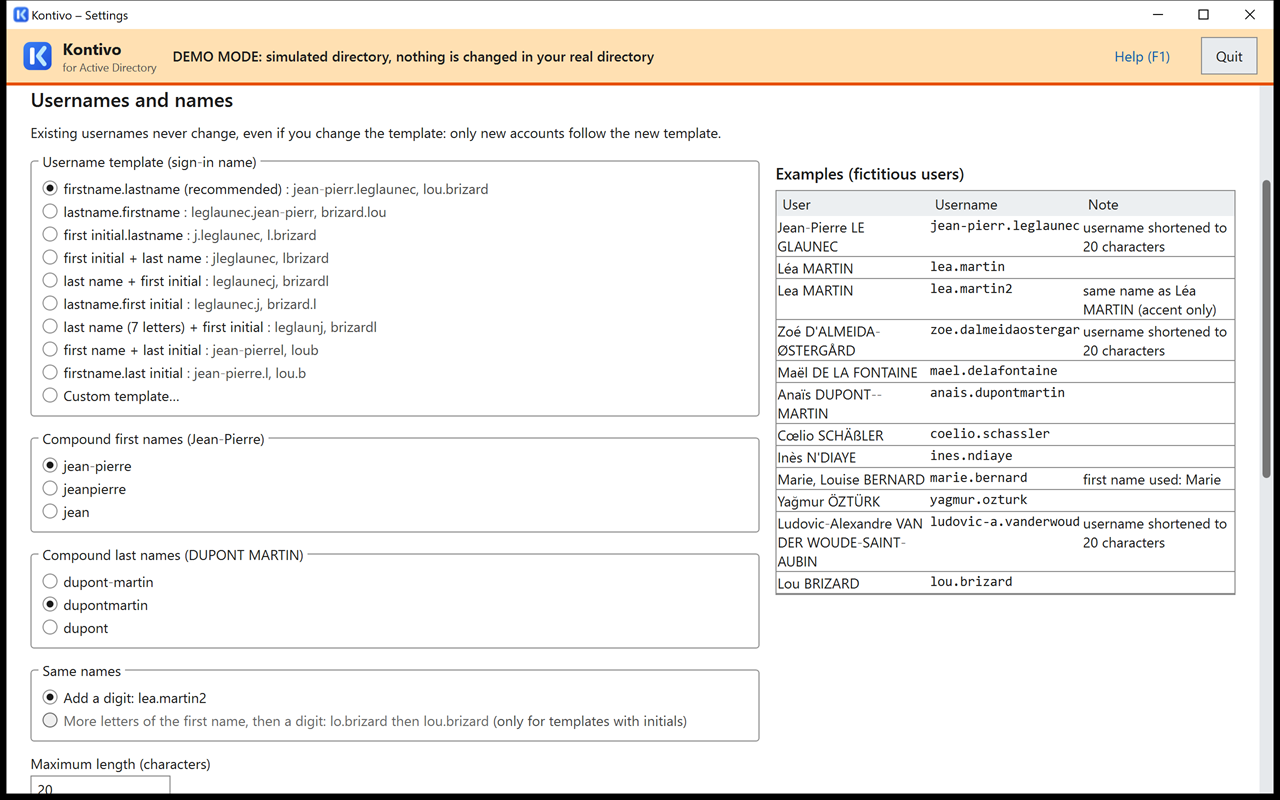
The other choices:
- Compound first names (Jean-Pierre):
jean-pierre(default),jeanpierreorjean. The same goes for compound last names (default:dupontmartin). - Same names: “Add a digit: lea.martin2” (default), or, for templates with an initial, “More letters of the first name, then a digit: lo.brizard then lou.brizard”.
- Maximum length: between 8 and 20 characters (20 by default). A longer username is shortened.
- If a user's name changes: “Keep their username (recommended)” or “Propose a new username (option unchecked in the preview; the group and the name are updated anyway)”. With the second choice, the user's line stays checked in the preview, with the “new username proposed” badge and an check box, unchecked: check it to rename the username. Changing the username makes the user lose access to their home folder and profile, and means handing out a new account sheet.
- Sign-in username suffix: the part after
@of the full sign-in name (UPN), for examplelea.martin@demo.local. - Display name: preferred last name (recommended) or family name.
- Directory groups: the template for the group names (by default
People-{classe}: the group Ventes gives the directory groupPeople-Ventes), the group of all users (by defaultPeople-All), and, if you want, one group per level (by defaultPeople-level-{niveau}). The level is deduced from the group name when it follows a recognized form (examples in Recognized school formats): under each sample group, the screen shows “level 6e”, or “unknown level: no level group”. A group name that is too long or already taken gets a different “short name”: it is displayed under the example, “short name (pre-Windows 2000 name, 20 characters at most): People-1ere-STMG-1”, with the note “short name shortened to 20 characters (pre-Windows 2000 name)” if it was shortened. These defaults, like the folder names proposed in § 5.1 and the account descriptions (§ 15), are those of a new installation: they are proposed in the interface language at the time of the first settings and written toconfiguration.json. An existing configuration (V1, V2) keeps its own (see § 3.7).
If your Group Policies, your shares or your user password policy already target a group (for example People-All or People-Ventes), move this group to the directory groups folder before the first import, and give it exactly the expected name: the tool then takes it over (“and 1 group” next to the “Accounts taken over” card) instead of creating a parallel group. A group left elsewhere is never used: the new group gets a short name with a suffix (People-All-2), and new users will not be in the old one. The preview reports it in orange (“Users will not be in this old group…”).
Existing usernames never change, even if you change the template: only new accounts follow the new template.
Group names can be read by all accounts in the domain, users included. Avoid a group name that reveals a personal situation (support, care or special assistance program…): choose a neutral template.
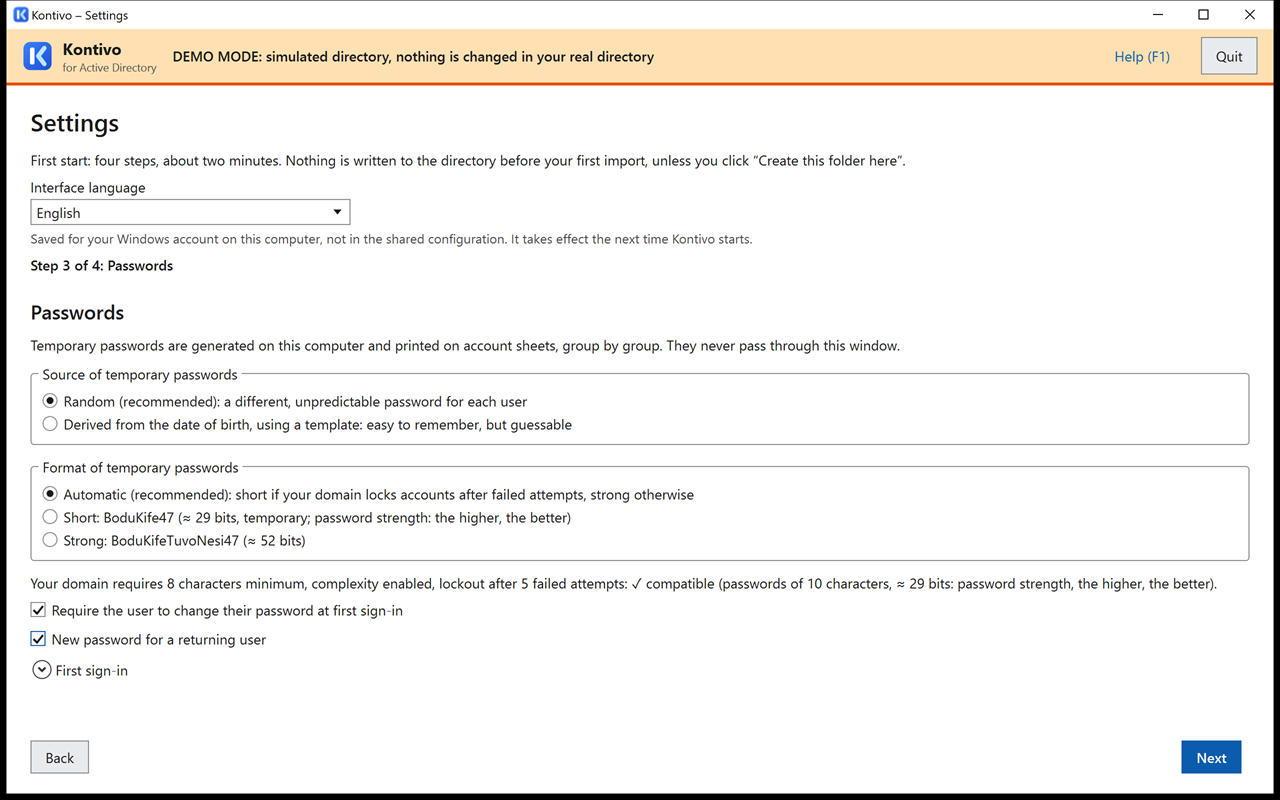
5.3 Passwords
Temporary passwords are generated on the computer and printed on account sheets, group by group. They only appear on the account sheets, when printed (§ 10), and are not written to any log.
- Automatic (recommended): short if your domain locks accounts after a few failed attempts (between 1 and 10), strong otherwise;
- Short:
BoduKife47(≈ 29 bits, temporary); - Strong:
BoduKifeTuvoNesi47(≈ 52 bits).
“Bits” measure the password strength (the number of possible combinations). The screen says so next to the format: “Short: BoduKife47 (≈ 29 bits, temporary; password strength: the higher, the better)”, and in the reading of the policy: “… ✓ compatible (passwords of 10 characters, ≈ 29 bits: password strength, the higher, the better).”
These passwords avoid the letters that change place between AZERTY and QWERTY keyboards (a, q, z, w, m, y), characters that are easy to confuse (l, 0, 1) and the hyphen. The account sheet tells the user to type the digits on the numeric keypad. The length is increased if your domain's password policy requires it: the screen displays the policy read and what it gives (“Your domain requires 8 characters minimum, complexity enabled, lockout after 5 failed attempts: ✓ compatible…”).
Passwords derived from the date of birth
The choice offers Random (recommended), as above, or Derived from the date of birth, using a template, which are easier to remember. The proposed template, {P}{n}{jj}{mm}{aaaa}, gives for a fictitious user, Lou BRIZARD, born on March 7, 2013: Lb07032013.
- Tokens:
{P}or{p}, first-name initial in uppercase or lowercase;{N}or{n}, last-name initial;{jj},{mm},{aaaa}or{aa}: day, month and year of birth. Initials lose their accents, as in usernames (Élodie gives E). The rest of the template is copied as is: unaccented letters, digits and keyboard symbols, except the space and"\<>&. A misspelled token ({JJ}) is refused, and the template must contain at least one element of the date. - Check: the screen shows the example and checks the template against your domain's policy (minimum length, complexity, fine-grained policies, a 2-character margin if a fine-grained policy cannot be read); the tool runs this check again when saving and at each preview. A template that is too short or not varied enough is refused, with the reason (“The template produces passwords of 6 characters: your domain requires at least 8…”).
- Users without a date of birth in the file (or whose password would contain the username or part of the name): their password is random, in the format chosen above. The preview says so on their line and counts them in its warnings; their account sheet shows this password.
- Personal data: the date of birth is never written to disk. The password is calculated at preview time, then stored, encrypted for your Windows account, in the run plan: an interrupted run resumes with the same passwords.
A password derived from the date of birth is easy to guess: someone who knows the date and the initial can sign in instead of the user. This is why, with this source, changing the password at first sign-in is always mandatory (the check box below is checked and grayed out). Have the first sign-in done right after the account sheets are handed out, with a supervisor present.
- Require the user to change their password at first sign-in: checked by default. Clearing it is only useful if the first sign-in takes place outside a domain computer (802.1X Wi-Fi, tablet, Microsoft 365).
- New password for a returning user: checked by default. Exception: a user who left 7 days ago or less (leaver by mistake, partial list) keeps their password, without a new account sheet.
5.4 Leavers and home folders
Leavers. A user missing from the file is disabled and moved to the departed accounts folder. Their account is permanently deleted once it left at least the chosen period ago: 90 days by default, 7 days at least. The field is called “Permanently delete departed accounts after (days, to be set with your data protection officer, the DPO)”: set this period with your DPO.
The panel sets the safeguards (see § 7.3): alert, confirmation and refusal thresholds for leavers, maximum share of incomplete lines, and two bulk confirmation thresholds, group changes (30% of the accounts found, by default) and renames (20%); it also sets the retention period of account sheets (7 days) and logs (12 months), what happens to users without a group, and the “Remove protection from accidental deletion on accounts to be moved or deleted” option (it requires an additional right, see Delegating rights). The default values suit most organizations.
Domain controller. The tool chooses a writable domain controller by itself. To force one, start ComptesAD.exe -Serveur dc1.demo.local, or fill in annuaire.serveur in the configuration file: the full name of a domain controller, or the domain name (the tool then discovers a domain controller and keeps it). Any other name is refused: “‘…’ is not a domain controller of demo.local: enter the full name of a domain controller…”.
Home folder. If you specify a path template, for example \\srv\people$\{sam} ({sam} is replaced by the user's username):
- the tool fills in the home folder path and the drive letter (
H:by default) of each new account, and of existing accounts that do not have one yet; - the check box appears, checked by default: the tool creates the folder of each new user on the share and gives the user the chosen permission (“Modify”, recommended, or “Full control”). If a folder with this name already exists, it is never silently given to the user: if it already has this user's permissions, nothing is done (“Already done”); if it is empty and has no explicit permission (interruption between two steps), the permissions are set again; otherwise, it is archived in
_archives\<username>_<date>(nothing is erased), then a new folder is created. If archiving is impossible (file open, permissions), the log says so and the folder is not assigned. Clear the check box only if a Group Policy (Folder Redirection) already creates the folders; - when an account is permanently deleted, its home folder is, as you choose, archived (recommended): renamed into the
_archivessubfolder of the same share, with the date (for example\\srv\people$\_archives\lea.martin_2027-10-05), nothing is erased; or left in place.
The folder of a user who has left is not touched during the quarantine: if they come back, they find their files again. A path set manually on an account, different from the template, is never archived. Archives are not erased by the tool: plan to delete them yourself, at the end of the period set with your data protection officer. The roaming profile template and the logon script are optional: the tool only fills in these attributes, it does not create the profile folder.
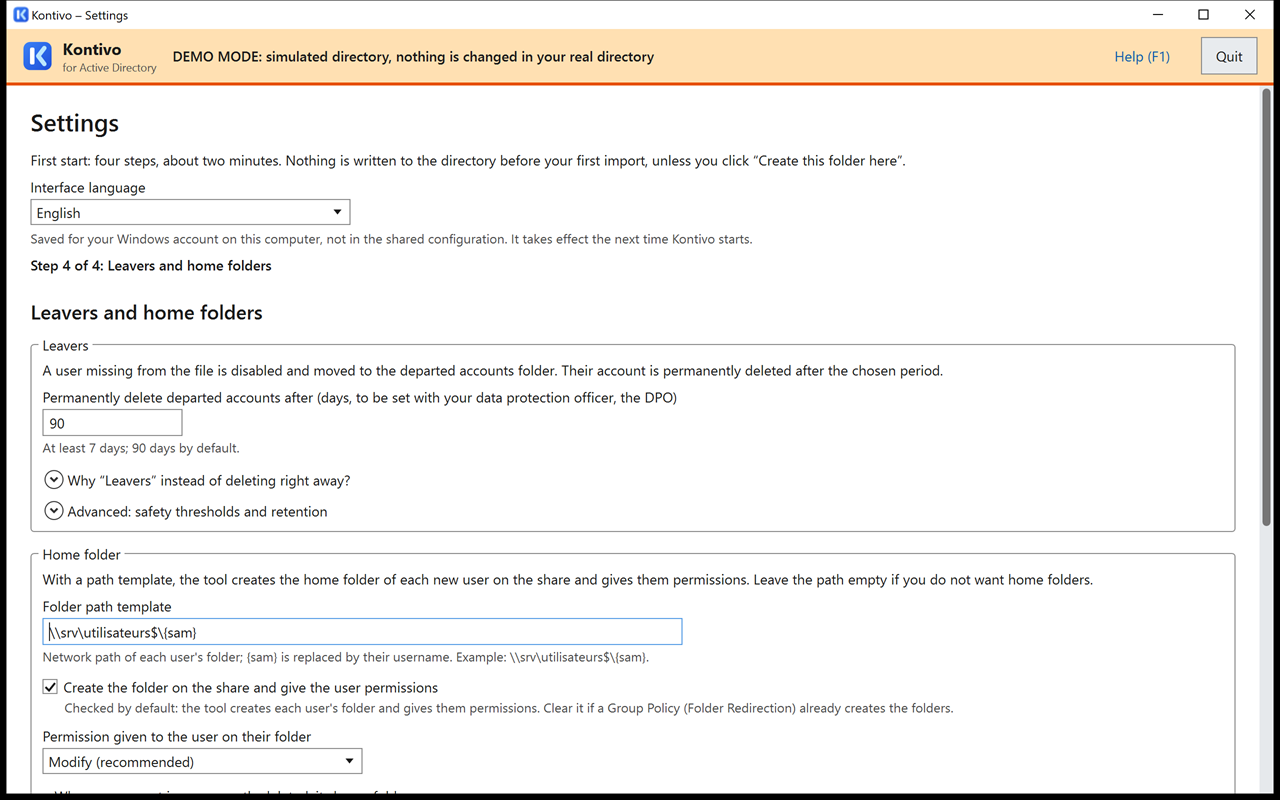
To create the folders, the account that starts the tool must have the Modify permission on the root of the share: see Delegating rights.
Accounts never to touch: a list of usernames (one per line), for example a demonstration account stored with the users. These accounts are never changed.
5.5 Save, then export
Click . The first time, the tool creates the organization secret (a key that lets it recognize users from one import to the next) and immediately offers to export the settings:
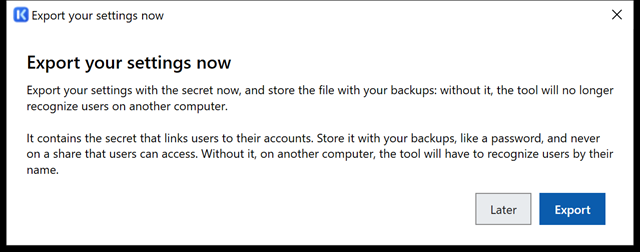
Click and store the file with your backups, like a password. Without it, on another computer, the tool will no longer recognize users by their fingerprint.
6. First pass on your directory: read-only
Before the first real import, start the tool in read-only mode. It reads your real directory, calculates the real preview and checks your account's rights, but no writing is possible: in the preview, the “Continue” button stays disabled (reason: “Read-only mode: no changes can be made to the directory.”), and folder creation is disabled.
In a command prompt:
C:\ComptesAD\ComptesAD.exe -LectureSeuleWith the delegated account (cmd /k keeps the window open if the tool refuses to start):
runas /user:DEMO\adm-comptes "C:\ComptesAD\ComptesAD.exe -LectureSeule"The top banner is blue: “READ-ONLY: no changes will be made to the directory”. Do the settings, import your list, and read the whole preview: number of accounts created, accounts taken over, questions asked, safeguards. Settings saved in read-only mode remain valid afterward.
For a first deployment, then run the first real import on a test OU, with a few fictitious accounts, before applying it to your real users.
7. An import, step by step
From the home screen, click . The import takes six steps, numbered at the top of the screen: File, Columns, Preview, Confirmation, Apply, Done.
7.1 File
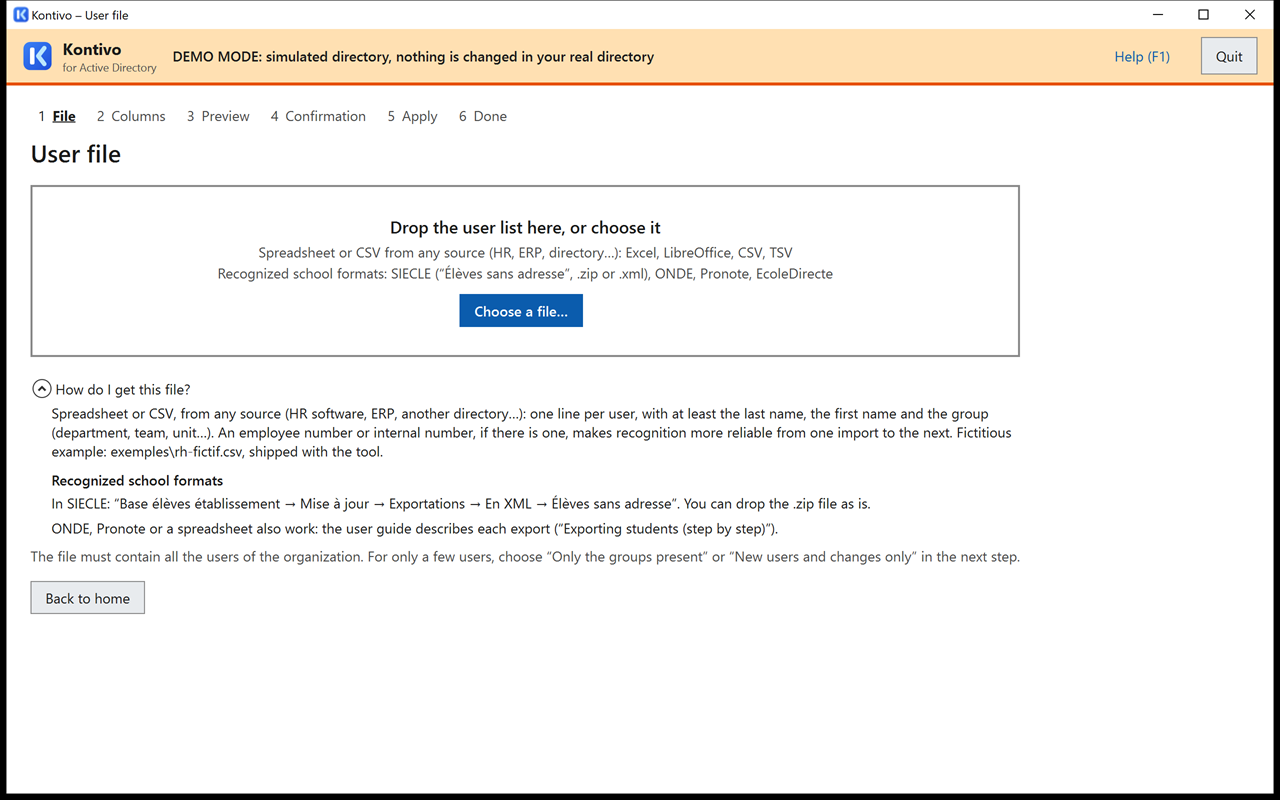
On the screen, drop the list in the “Drop the user list here, or choose it” area, or click inside it to choose it.
Spreadsheet or CSV (any source)
This is the general case: a spreadsheet or a CSV file, from any source (HR software, ERP, another directory…), with one line per user and at least the last name, the first name and the group (department, team, unit…). Accepted formats: CSV, TXT and TSV, Excel (.xlsx, .xls) and LibreOffice (.ods). An employee number or an internal number, if there is one, becomes the user's external ID: it makes recognition from one import to the next more reliable. A date of birth, which is optional, plays the same role. Fictitious sample delivered with the tool: exemples\rh-fictif.csv (columns Matricule, Nom, Prénom, Service), and exemples\rh-fictif-2.csv for an update (§ 4).
The collapsible help recalls what is needed; school exports are described in the next subsection.
The file must contain all the users of the organization. A user missing from the file is considered to have left. For only a few users, choose “Only the groups present” or “New users and changes only” at the next step.
If the tool was started with an account other than the one of your session (§ 3.3), the file must be in a folder that this account can read. A CSV file in ISO-8859-15 (the accents of some exports) is recognized like the others.
Recognized school formats
This subsection groups what is specific to the exports of French schools: the software of the French Ministry of Education and school management software. The names of their menus are left in French below. The File screen lists them under the same title: “Recognized school formats: SIECLE (‘Élèves sans adresse’, .zip or .xml), ONDE, Pronote, EcoleDirecte”. For these files, the “group” is the class (the division), the “organization” is the school, and the organization ID is its UAI. The step-by-step guide for each export is in Exporting students (in French).
- SIECLE “Élèves sans adresse”: the
.zipas is, or the.xml. In SIECLE: “Base élèves établissement → Mise à jour → Exportations → En XML → Élèves sans adresse”. You can drop the .zip file as is. A SIECLE extraction in CSV is read too. - ONDE, Pronote, EcoleDirecte: their CSV or TXT exports are recognized as spreadsheets (“ONDE, Pronote or a spreadsheet also work: the user guide describes each export (‘Exporting students (step by step)’).”).
- External ID: SIECLE and ONDE provide the INE (national student identifier), and SIECLE the SIECLE number (column “SIECLE number (student ID)”); the tool uses them as the external ID, without ever writing them to the directory (§ 15).
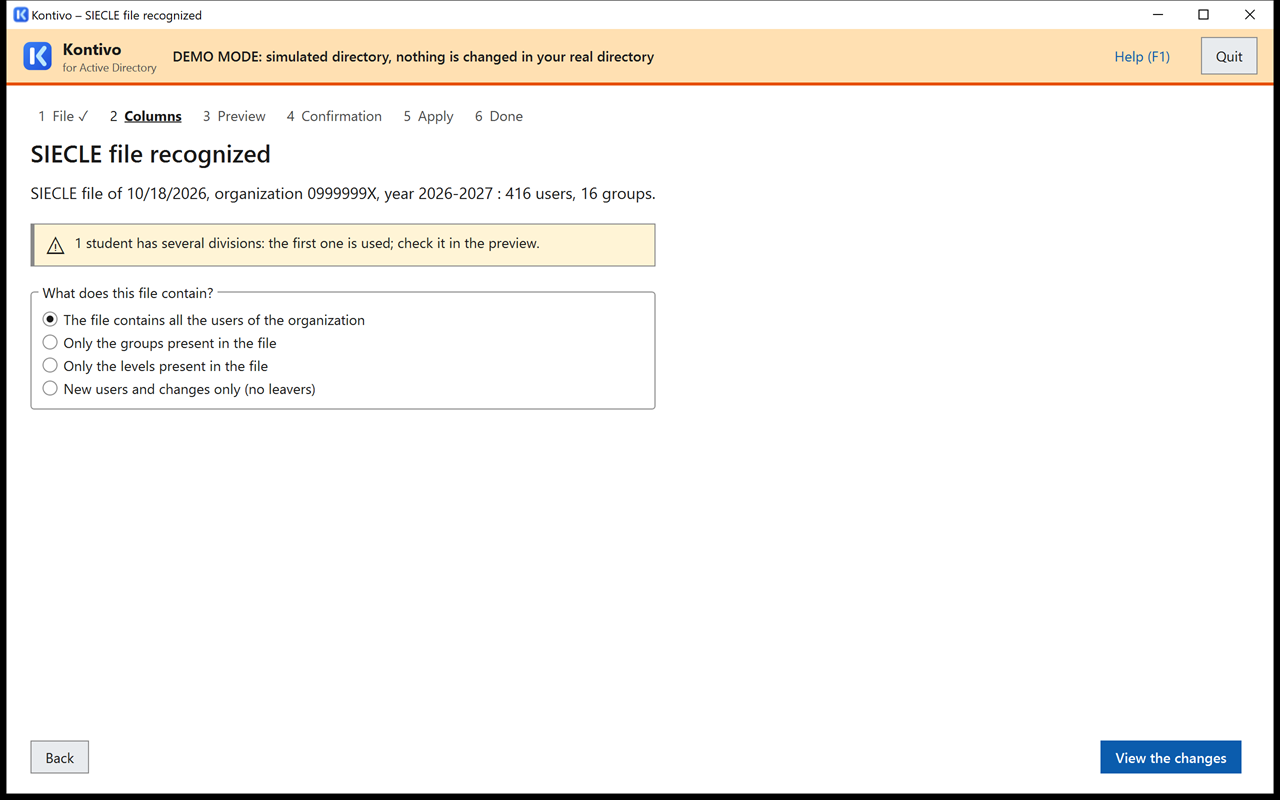
- Summary of a SIECLE export: at the Columns step, the tool recognizes the file (“SIECLE file recognized”) and summarizes it in one sentence (“SIECLE file of 10/18/2026, organization 0999999X, year 2026-2027: 416 users, 16 groups.”), followed by the button.
- Level column: the MEF column (“6EME”, “2NDE GT”…) is never taken for the class, and the tool refuses it if you choose it: “The column ‘…’ gives the level (6EME, 2NDE GT…), not the class: choose the class column (Division).”
- Levels: the level is deduced from the class name (
601→ 6e,1ERE G2→ 1re,TERM→ Tle,2NDE→ 2de;CP,CM2… kept), for the level groups (§ 5.2). - UAI: in the settings (step 1), the organization ID, if given, follows the UAI format of the French Ministry of Education: 7 digits and an uppercase letter (example: 0999999X). A SIECLE export from another school (another UAI) is refused: “This file comes from another organization (ID …).”
- Wrong SIECLE export: “This STS-Web file describes staff: version 1 imports students.” In SIECLE, choose the “Élèves sans adresse” export (a .zip that contains an .xml).
- Leaving date: a student whose SIECLE leaving date is in the future stays in the “Leaving scheduled” card; their account will leave during an import after that date.
- Year of the file: a SIECLE export for the following year, imported in June or July, is reported (“File preparing the 2027-2028 school year.”). From August on, it is simply the current year. An export from another year asks for your confirmation: “This file is for the year 2027-2028: check that it is the intended export (year chosen in SIECLE).”
- Old export: a SIECLE export more than 30 days old is reported (“Export of …: remember to run the export again.”).
- The start of the school year: in a middle school, the departure of the final-year students (3e, or terminale in a high school) approaches or exceeds 25% of the accounts, and almost all students change class: the phrase to type is then usually
DISABLE n AND MOVE m(see § 8). An export from July or early September often contains students not yet assigned to a division: they are treated as users without a group. - Samples of school formats delivered in
C:\ComptesAD\exemples\:ElevesSansAdresses-fictif.zip,extraction-siecle-fictif.csv,onde2-fictif.csv,pronote-EXP_ELEVE-fictif.txt,tableur-fictif.xlsx,tableur-sans-identifiant-fictif.xlsx,une-feuille-par-classe-fictif.xlsx, andrentree-fictif.zip(the same fictitious school one year later). To simulate the start of a school year in demo mode, as in § 4 with the HR sample: importElevesSansAdresses-fictif.zip, quit, start again with-AujourdhuiSimule 2027-07-06(the fictitious export is dated 7/4/2027), then importrentree-fictif.zip. It contains students without a class and the departure of a whole level: the tool asks for a phrase such asDISABLE 102 AND MOVE 294. This is intended.
7.2 Columns
The tool recognizes the columns on its own (last name, first name, group, date of birth, external ID…). What it displays depends on the file:
- SIECLE export (XML): one sentence summarizes the file, followed by the button (see Recognized school formats).
- Columns recognized with certainty, or already kept from a previous import: “Is everything correct?”, the first five lines as the tool understands them, and the button (the “Fix the columns” link remains available).
- Otherwise: “Check that the tool has understood your file correctly”. For each piece of information, choose from the list the column of the file that contains it; the table shows the result immediately. Unneeded columns (sex, address…) are ignored. A level column is never taken for the group.
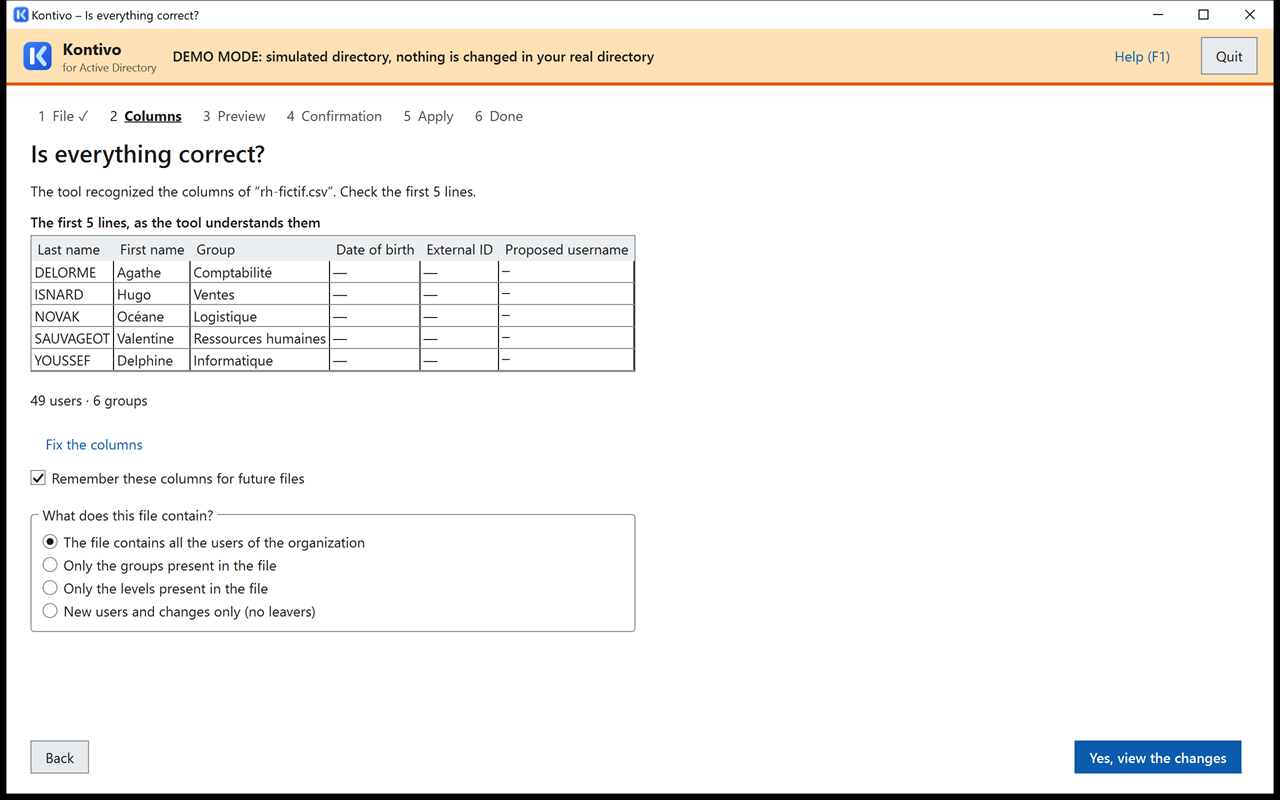
rh-fictif.csv: the employee number becomes the external ID, the department the group; the first five lines show what the tool understood. For a SIECLE export, see Recognized school formats.Other choices on this screen:
- Sheet: if the workbook has several sheets. The columns are recognized by their header in each sheet (the order may differ). A sheet that does not have the columns of the first one is left aside, and the tool says so: “The sheet … does not have the columns of the sheet …: it is not read, and its users will not get an account.” If each sheet bears the name of a group (6A, 6B…), the “One sheet per group” check box is offered, already checked.
- My first line already contains users: if the file has no header line.
- Remember these columns for future files: the next file with the same column headers will go directly to “Is everything correct?”.
- What does this file contain? This is the most important choice:
- “The file contains all the users of the organization” (default): the accounts of users missing from the file will leave;
- “Only the groups present in the file”: only the users of these groups can leave. A user missing from their group's list may only have changed group: these leavers are therefore unchecked in the preview (“partial import” badge), and if you check any, you will have to type the confirmation phrase;
- “Only the levels present in the file”: the same, by level;
- “New users and changes only (no leavers)”: the choice to make for a file that only contains new users.
File without an external ID and without a date of birth (a simple table with last name, first name and group): it is accepted, but the tool then recognizes users by their full name (last name, full first name) and their previous group. This is less reliable: you are asked about same names, and leavers are unchecked (check the ones you confirm). Two lines with the same name in the same group are two users, each with their own account (the tool reports it: “Two lines have the same name in the same group…”): if one of them is a duplicate, remove it from the file. Prefer an export with an external ID (employee number, staff number, INE…) or the date of birth.
7.3 Preview of the changes
The tool reads the directory (up to half a minute), compares it with the file, and shows all the planned changes. Nothing has been changed in the directory yet.
The cards at the top count the lines of each kind; click a card to see its lines:
| Card | What the tool will do |
|---|---|
| To check | Nothing, as long as you have not answered the question asked for the user (see below). |
| New | Create the account, with the username displayed (editable), a temporary password and, if configured, the home folder. |
| Change group | Change the directory group and the OU (“5B → 4B”). |
| Change name | Update the display name; the username is kept. |
| Returning | Re-enable the account of a user who left and comes back: new password and account sheet, unless they left 7 days ago or less (they keep their password). An account set to “password never expires” loses this setting, and the log records it. |
| Accounts taken over | Take over an account created manually, recognized by the user's name or by their external ID (username and password kept). The card only counts accounts; existing groups that bear exactly the expected name, stored in the groups folder, are taken over too and counted next to it (“and 2 groups”). A doubtful account (disabled, or with no sign-in since the previous period) is proposed unchecked, with the “name only” badge and the note “Same name, different group: is this the same user? Check the line to take over this account; otherwise, nothing is done for this user.” |
| Repairs | Restore a group or an attribute changed manually. |
| No group | Leave the account in place; a new user without a group gets an account “waiting for a group”. |
| Leavers | Disable the account and move it to “Leavers”. Nothing is deleted today. |
| To delete permanently | Delete the accounts that left at least the chosen period ago (with 7 days, from the 7th day). |
| Leaving scheduled | Nothing: the leaving date given by the file (SIECLE) is in the future; the account will leave during an import after that date. |
| No change | Nothing: the account is already up to date. |
| Ignored lines | Nothing: the line cannot be used (empty name, empty group…). If the tool can still recognize the user (by their external ID or their name), their account does not leave. |
| (line without a check box) | Nothing: an account managed by the tool but that has become untouchable is only reported, never duplicated. “This user's account is protected (it is in the exclusions in the settings): it is not changed, and no other account is created.” (other possible reasons: “adminCount is 1, often left over from a former administrative group…”, “it is a member of an administrative group”), or “This user's account was moved out of the users OU (…): it is not changed, and no other account is created. Move it back into the users OU so that the tool keeps track of it.” |
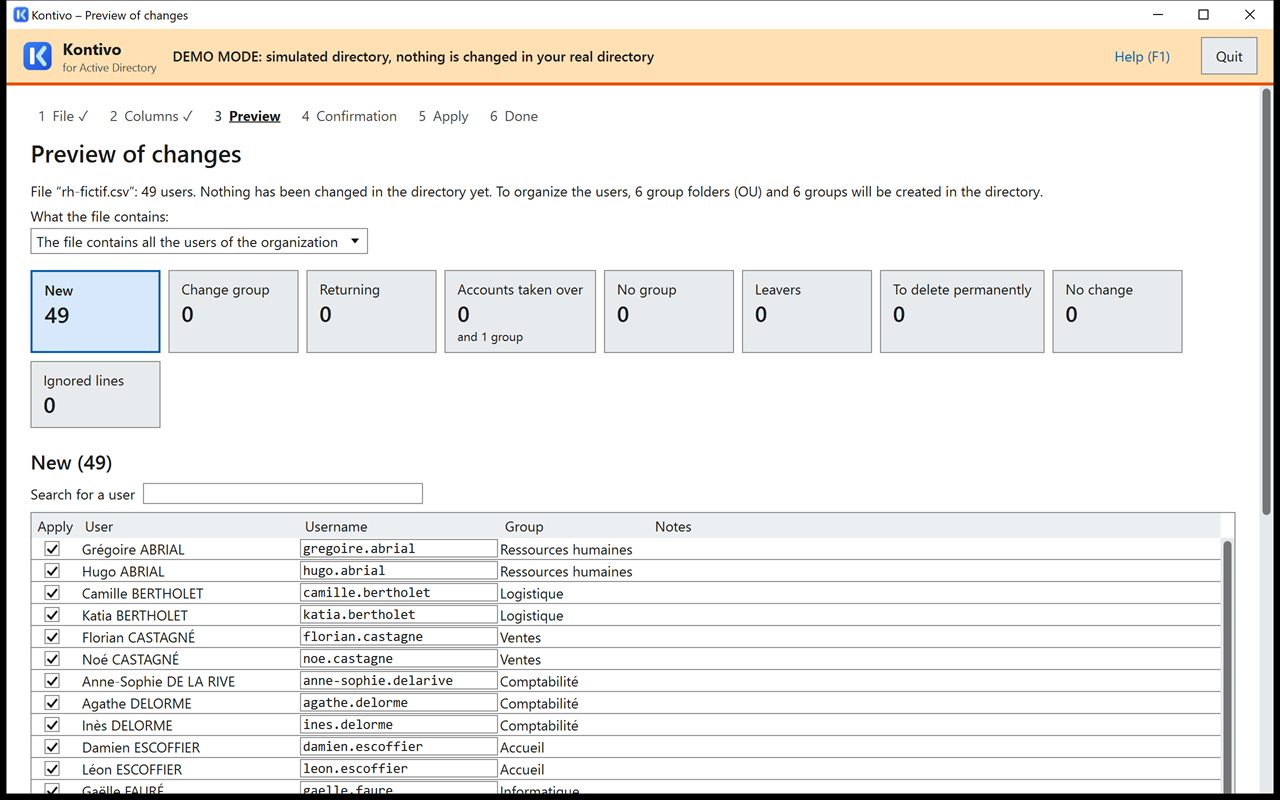
rh-fictif.csv. When there are “To check” lines, they are questions: answer them, or leave them unanswered (nothing is then done for these users).The questions (“To check” card): several accounts may match a user, a user appears in two groups, an existing account has a value set by another tool, a username cannot be calculated (name in another alphabet)… Choose the right answer. An unanswered question does not block anything: nothing is done for this user, and their account does not leave.
- “Same user?”: when a new user in the file resembles an account that is about to leave or has left (same name but another date of birth, corrected name with the same first name and date, same name in another group), the tool never decides on its own: without an answer, a new account is created and the other one follows its course. Answer “yes” to link the two: the user keeps their account. Two different external IDs, or two twins (different first names), are never merged.
- Several possible accounts: the tool never chooses an account based on the group alone. Without an answer, nothing is done for the user.
- “Employee number already set by another tool” (
employeeNumberattribute): the first answer offered is “No: do not take over this account (the value is kept)”, and nothing is replaced without an answer. If another tool uses it (HR software, School Data Sync, value starting with “SDS:”, ENT…), answer “No” and check with the person who manages that tool. “Yes, replace this value” permanently erases the value: that tool will no longer recognize the account.
What you can change:
- uncheck a line: it will not be applied;
- edit the proposed username of a new account: it is checked as soon as you leave the field (a username that is already taken is refused);
- check on the line of a user who changes name, if you chose “Propose a new username” in the settings (§ 5.2);
- change “What the file contains”;
- to review it in a spreadsheet (it contains user names: delete it after use);
- , if someone changed the directory in the meantime.
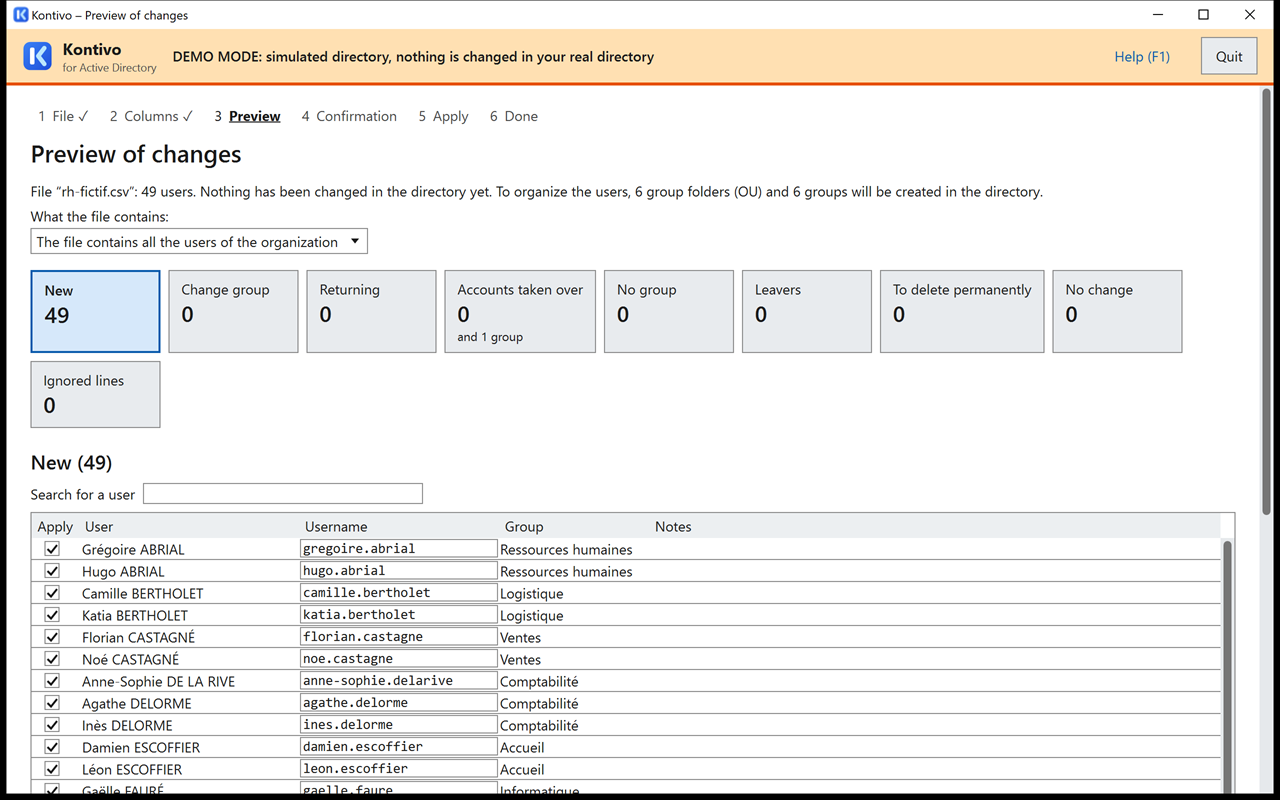
The safeguards. At the top of the preview, messages alert you. Some require a confirmation, others block the run:
- more than 10% of the accounts (or more than 50 accounts) are about to leave: alert;
- more than 25%: you will have to type a confirmation phrase, for example
DISABLE 102. A periodic update (end of year, contract or season) can trigger this message: check that these leavers are expected; - more than 60%: refusal. This is almost certainly an incomplete file or a file from another organization;
- in a partial import (“Only the groups present”), checked leavers: confirmation phrase;
- more than 30% of the accounts found change group, or more than 20% change name (from 10 accounts found): confirmation phrase
MOVE norRENAME n. The phrases are combined:DISABLE 102 AND MOVE 294, which is normal during a reorganization (almost everyone changes group). Otherwise, check the column chosen for the group (a level, option or subgroup column is not the group), and that Last name and First name are not swapped; - the file contains less than half of the managed users, or all users are in the same group: refusal, unless you choose “Only the groups present”;
- too many lines without a last name or first name: refusal (is the chosen column the right one?);
- file from another organization (another ID): refusal;
- a group to take over or to fill is a member of an administrative group (or has
adminCount = 1): refusal, because adding users to it would give them administrative rights. Remove it from that group, then run the preview again; - a group with the same name exists outside the groups folder: orange alert (see the box in § 5.2).
The thresholds for leavers, incomplete lines, group changes and renames are set in , “Advanced” panel. The button stays disabled as long as a blocking condition remains; the reason is written next to it. If the preview plans nothing, the tool displays “Everything is already up to date.”
7.4 Confirmation
The screen summarizes in sentences what will be done: “100 accounts will be created…”, “102 accounts will be disabled and moved to ‘Leavers’ (can be restored, deletion in 90 days)”… It recalls the domain controller used and the alerts. If a phrase is requested, type it (uppercase and accents do not matter); it can combine several confirmations: DISABLE 102 AND MOVE 294 AND RENAME 12. The words of the phrase are those of the interface language (§ 5, “Interface language”). The “I have read the warnings” check box only appears if there is at least one warning and no phrase to type covers the requested confirmation; it says how many: “(1 warning above)”, “(3 warnings above)”; check it, the button stays disabled without it (reason: “Check ‘I have read the warnings’.”). With no warning and no phrase, the button is enabled right away. A snapshot of the directory is saved before starting. Click .
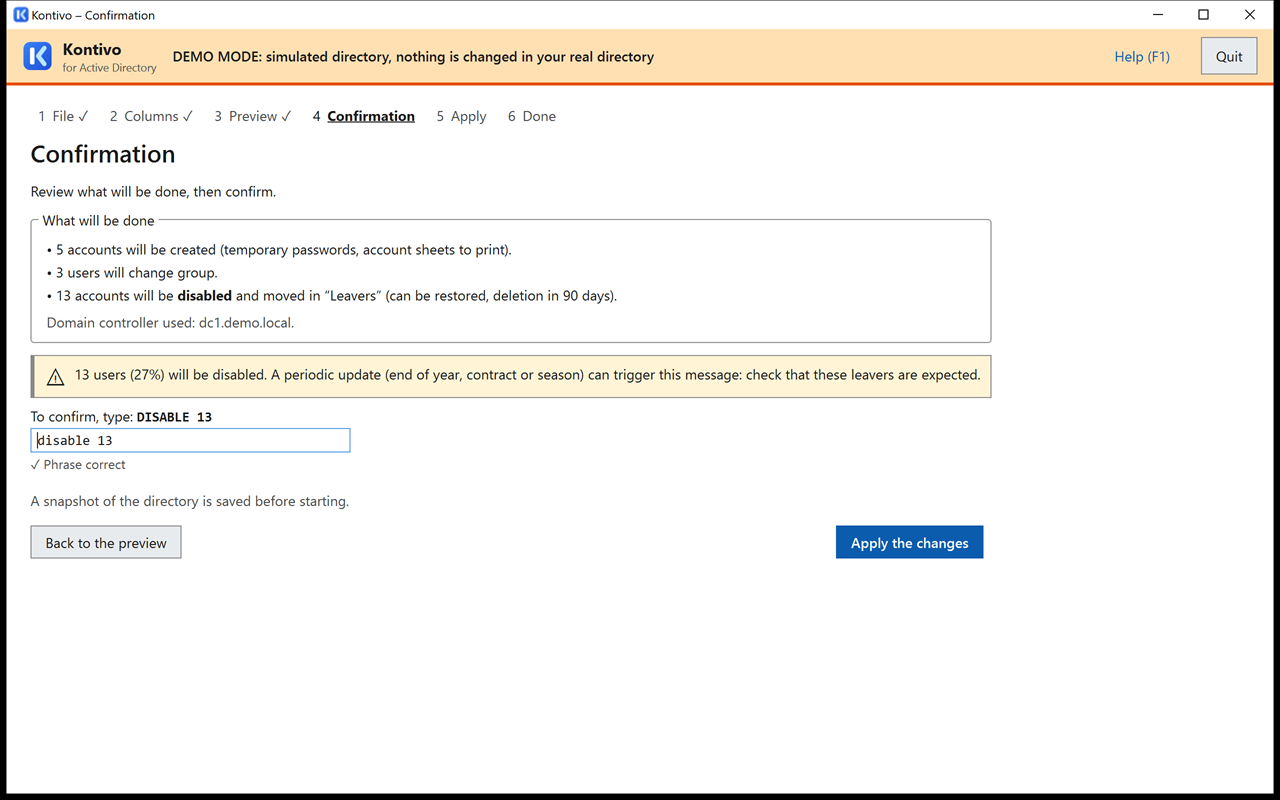
rh-fictif-2.csv (see § 4): the phrase “DISABLE 13” is typed in lowercase, and it is accepted.7.5 Apply
A progress bar and a scrolling log show each operation (“✓ Creation…”, “= Already done…”, “✗ …: insufficient rights”). Do not close the window during the run: if it closes anyway, the home screen offers to resume where it stopped. The button stops cleanly after the current operation; you can then resume or stop there.
The tool also pauses on its own after 5 errors in a row, or if more than 10% of the operations fail, or if the domain controller no longer responds. Fix the cause (often a missing right), then .
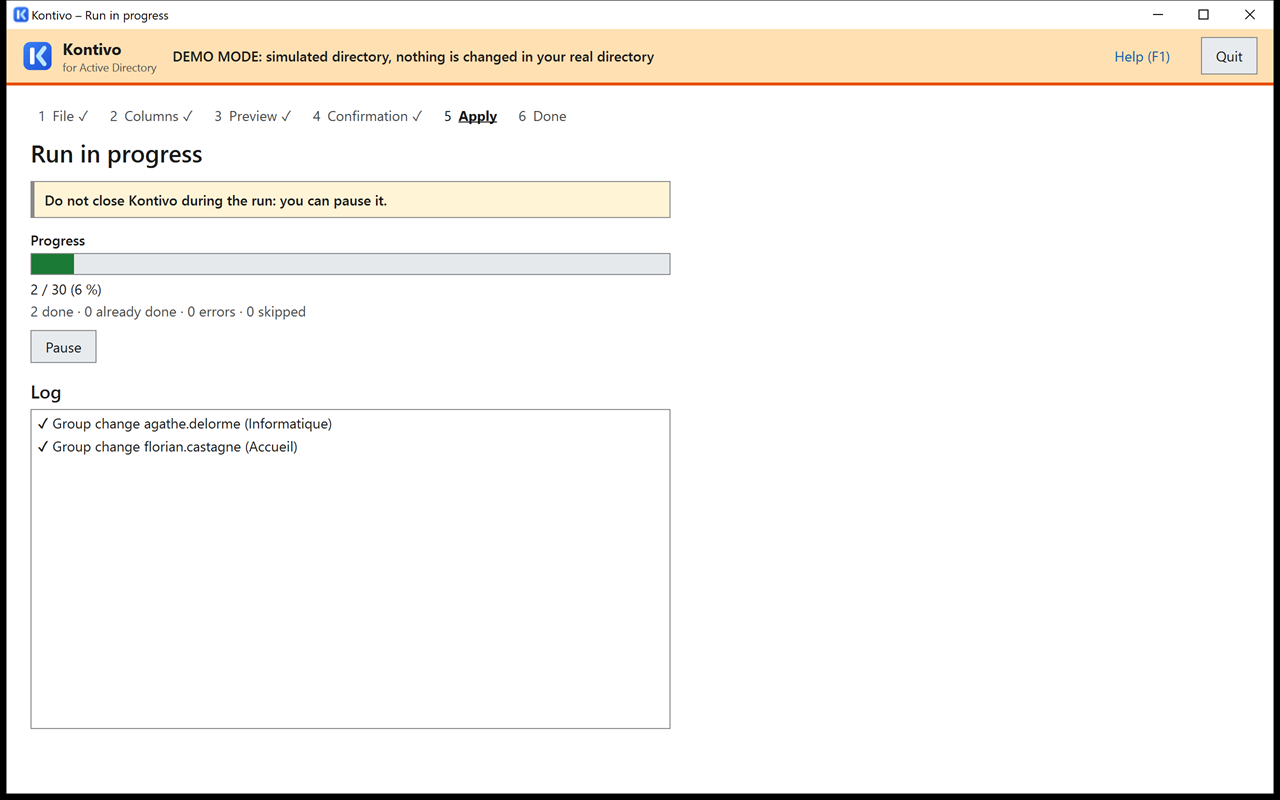
rh-fictif-2.csv: the progress and the operations log.If the window is closed or the computer restarts in the middle of a run, nothing is lost: see § 13, “The run was interrupted”.
7.6 Done
The “Done” screen summarizes the result (“386 accounts created, 21 changed, 1 error”). Click to read the errors. Then:
- (see § 10), or later the link, which leads to the account sheets screen (§ 10);
- ;
- follow the reminders: delete the user file you have just imported, delete the account sheets after handing them out, have the new users sign in for the first time on a domain computer.
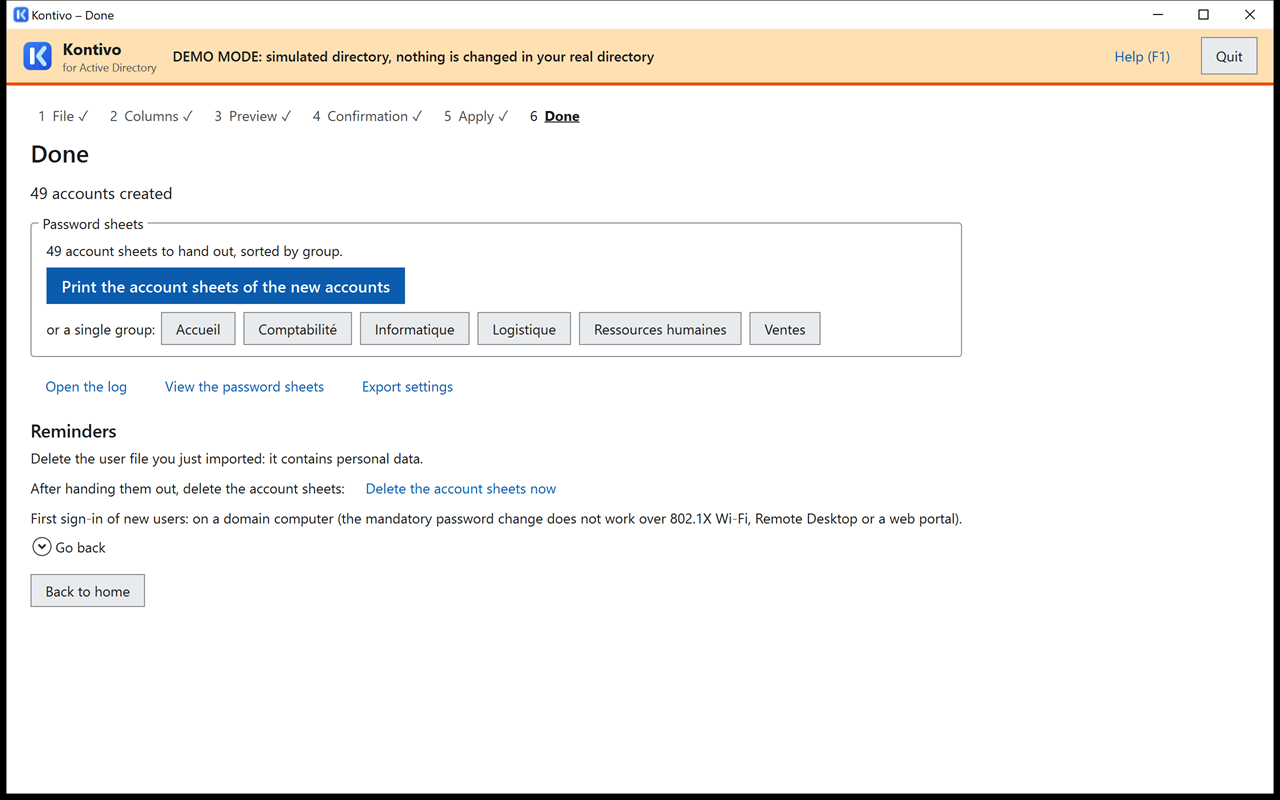
rh-fictif.csv: the accounts are created, the account sheets are ready to print, department by department.An operation in error is not lost: the next preview will propose it again.
7.7 Add a user manually
For a new user arriving during the year, without waiting for a new export: home screen, . Enter the last name, the first name, the group and, if you have them, the external ID and the date of birth (they will make it possible to recognize the user at the next complete import). adds a user. Click : the preview follows, and no other account will be changed (no leavers).
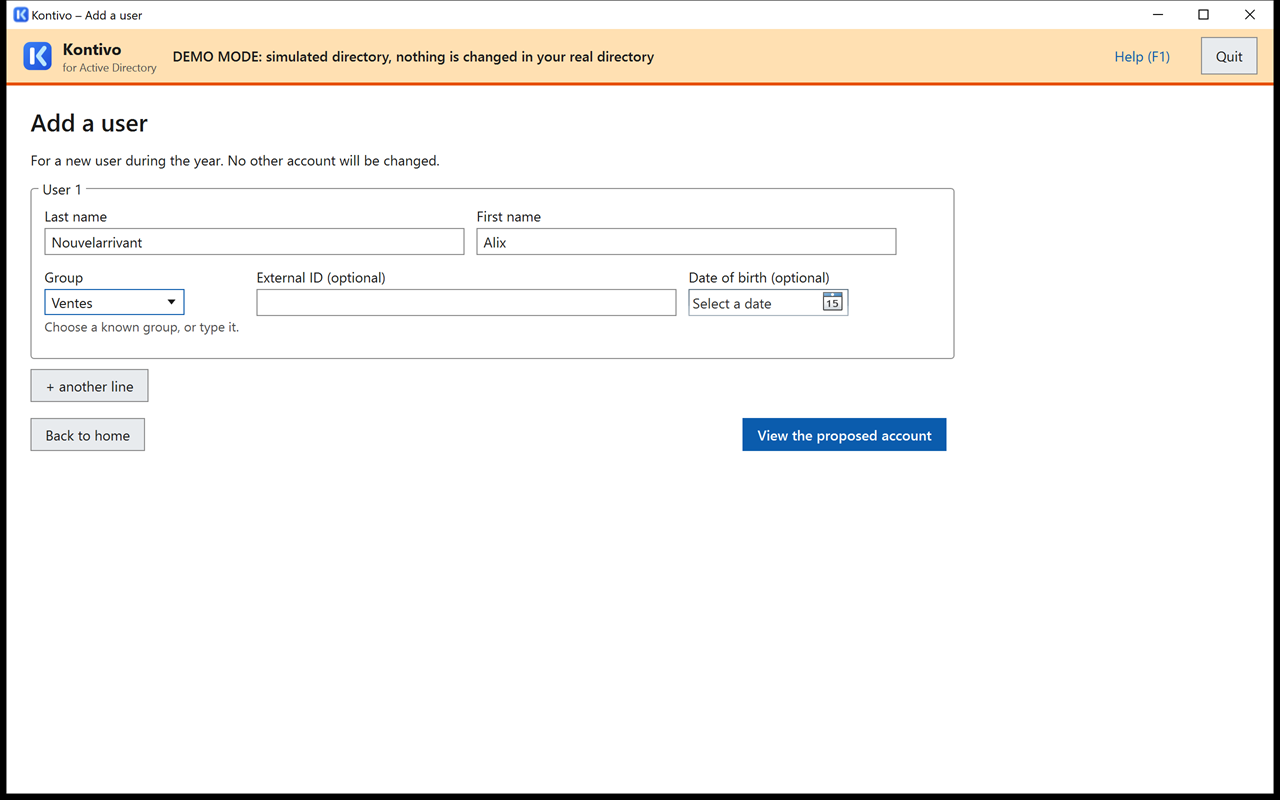
8. The next update (new period)
At each new period (new year, new season, reorganization), simply import the new complete list. The tool recognizes each user by a fingerprint of their external ID or their date of birth (see § 15): users who stay change group, new ones are created, those who have left are disabled.
- Many leavers (end of year, contract or season): they can approach or exceed 25% of the accounts. Above 25%, the tool asks you to type
DISABLE n: this is normal during a periodic update, if these leavers are expected. If it announces “No users of … in the file: … accounts will leave.”, this is also normal if these users have left. - Almost everyone changes group: above 30% of group changes, the tool also asks for
MOVE n. During a reorganization, the phrase to type is therefore usuallyDISABLE n AND MOVE m. - Users without a group: an export made before assignment often contains users not yet assigned to a group. Their existing account stays in place, without a change of group; a new user without a group gets an account “waiting for a group”, stored directly in the users folder, in the group of all users only. Import again when the groups are known: the accounts will be moved to their group.
- School exports: the year of the file and the age of the SIECLE export are checked (see Recognized school formats).
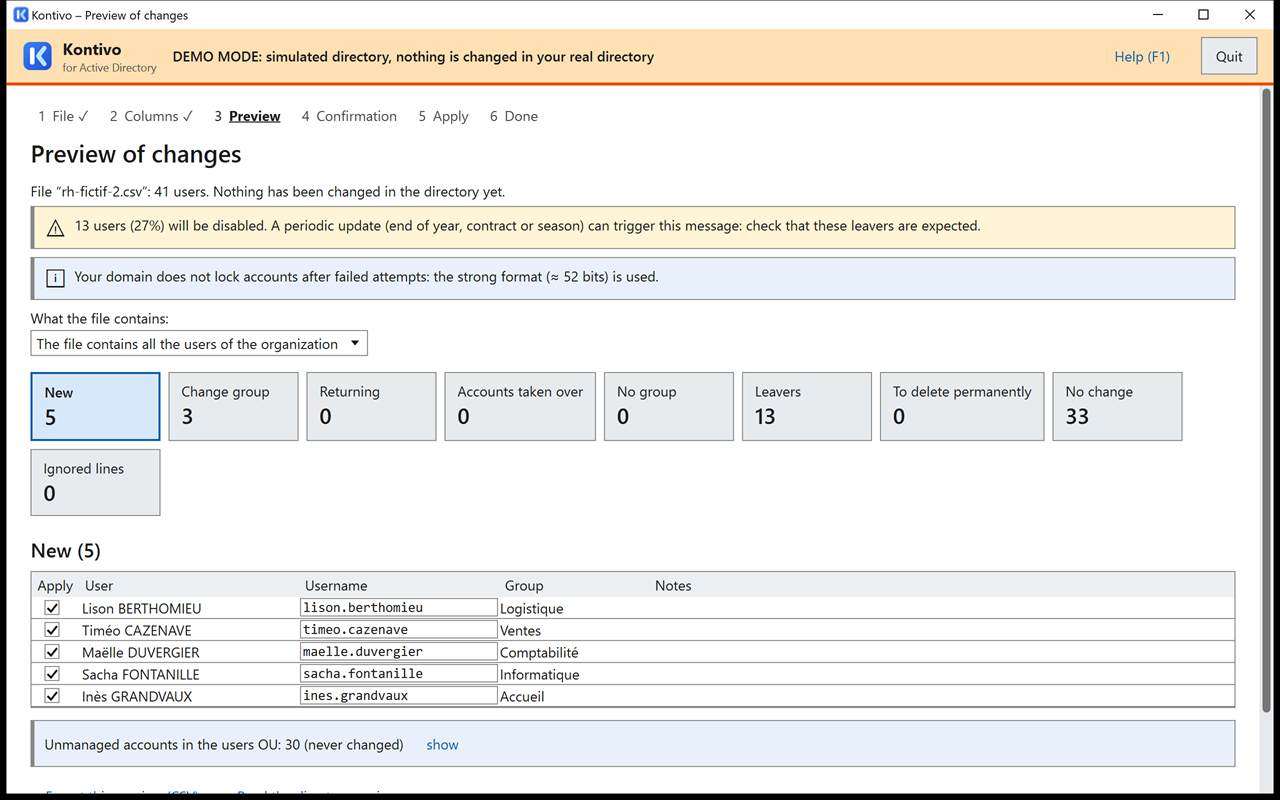
rh-fictif-2.csv imported at the simulated date of 7/6/2027 (§ 4): 5 new users, 3 department changes, 13 leavers. The leavers exceed 10% of the accounts: the preview reports it.To try an update without risk, demo mode simulates it with the samples rh-fictif.csv then rh-fictif-2.csv, at a later simulated date (§ 4).
Before the new period, also remember to check that the deletion period suits you: the accounts that left during the previous period will be proposed for permanent deletion.
9. Leavers, returns, undo
9.1 What happens to the account of a user who has left
A user missing from the file has not always left: export error, late enrollment, return after a move. Their account is therefore not deleted right away. When the user leaves, in a single operation, the tool:
- disables the account;
- removes it from the groups created by the tool (never from other groups);
- replaces its description with “Parti le jj/mm/aaaa (absent de l'import)”, keeping its group (this description is written in French, dd/mm/yyyy, whatever the interface language: it means “Left on …, missing from the import”);
- moves it to the departed accounts folder.
The home folder is not touched. An account that you had disabled yourself also leaves, but it will never be re-enabled automatically.
9.2 Permanent deletion
When an account left at least the chosen period ago (90 days by default: from the 90th day), the next preview puts it in “To delete permanently” (“n accounts that left at least 90 days ago will be deleted.”). You must type DELETE n to confirm. The button sets aside all the deletions of this import. If archiving is configured, the home folder is then renamed into _archives.
Deletion is permanent. Without the Active Directory Recycle Bin, a deleted account cannot be restored (the home screen reports it: “The Active Directory Recycle Bin is not enabled.”). The tool never enables the Recycle Bin: this is an irreversible decision for the domain administrator. A snapshot of the directory is saved before each run (see § 11).
A deleted username stays reserved for two years: it is not given to another user. If the user themselves comes back, they get their username back.
9.3 A user comes back
If they appear again in an export, or if you add them manually, their departed account is re-enabled. A manual addition finds the account of a departed person by their external ID (INE or employee number), entered in the “External ID” field of the form, or, without an ID, by their name and date of birth when the original file provided one. Otherwise, a manual entry creates a new account. On return, they go back to their group and their directory groups and, if the “New password for a returning user” check box is checked, they get a new password (and an account sheet). Exception: if they left 7 days ago or less (leaver by mistake, partial list), they keep their password, and the preview says so (“Left on … (3 days ago): the account is re-enabled, and the user keeps their password.”). If the account was set to “password never expires”, this setting is removed on return, and the log records it. The account stays disabled if it had been disabled manually before leaving (“disabled manually” badge).
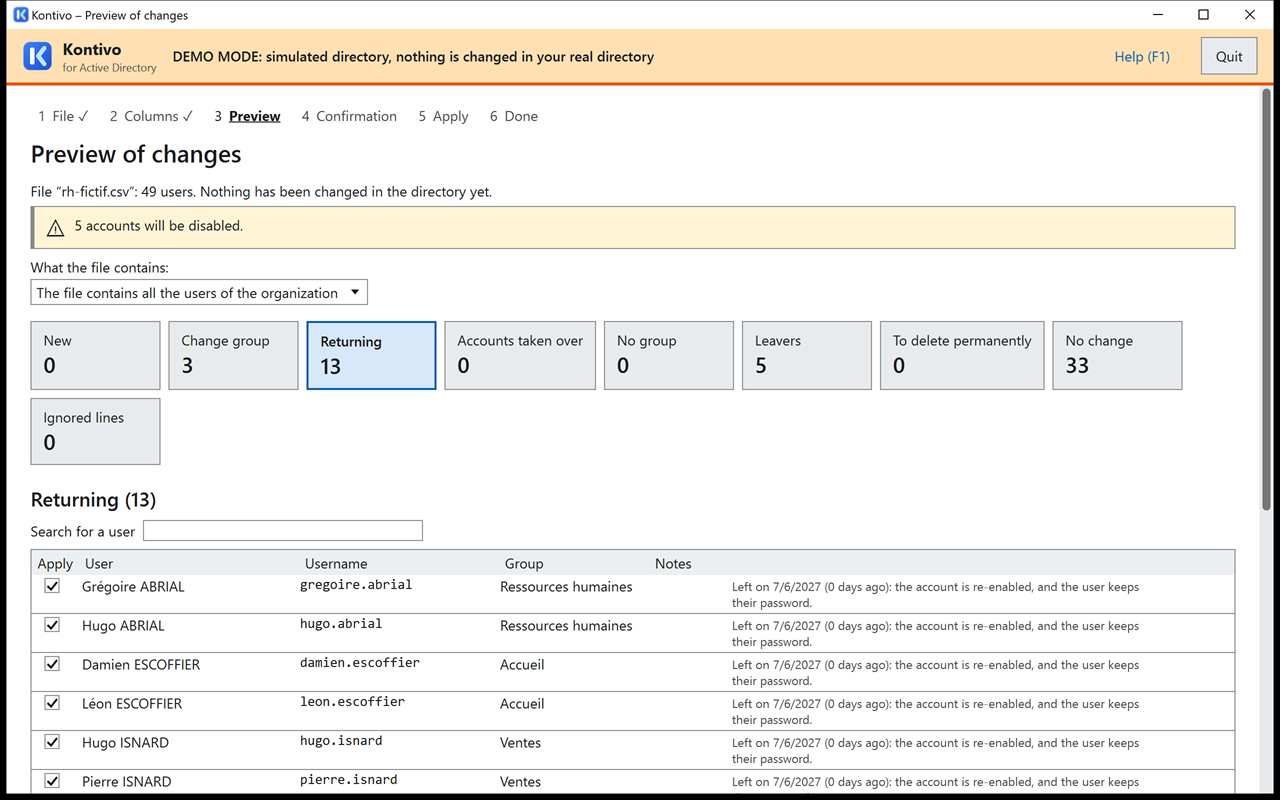
9.4 Undo the leavers from an import
If an import wrongly made users leave (wrong file, partial export), you can undo its leavers in one click, as long as the accounts have not been deleted:
- On the home screen, click : the last ten runs with leavers are listed.
- Click next to the import you want.
- The “Undoing leavers” preview shows the accounts that will be re-enabled in their group (“Returning” card). Continue, then apply: with no warning, there is neither an “I have read the warnings” check box nor a phrase to type; the button is enabled right away.
The accounts return to their group and their directory groups, with their former password (no new account sheet).
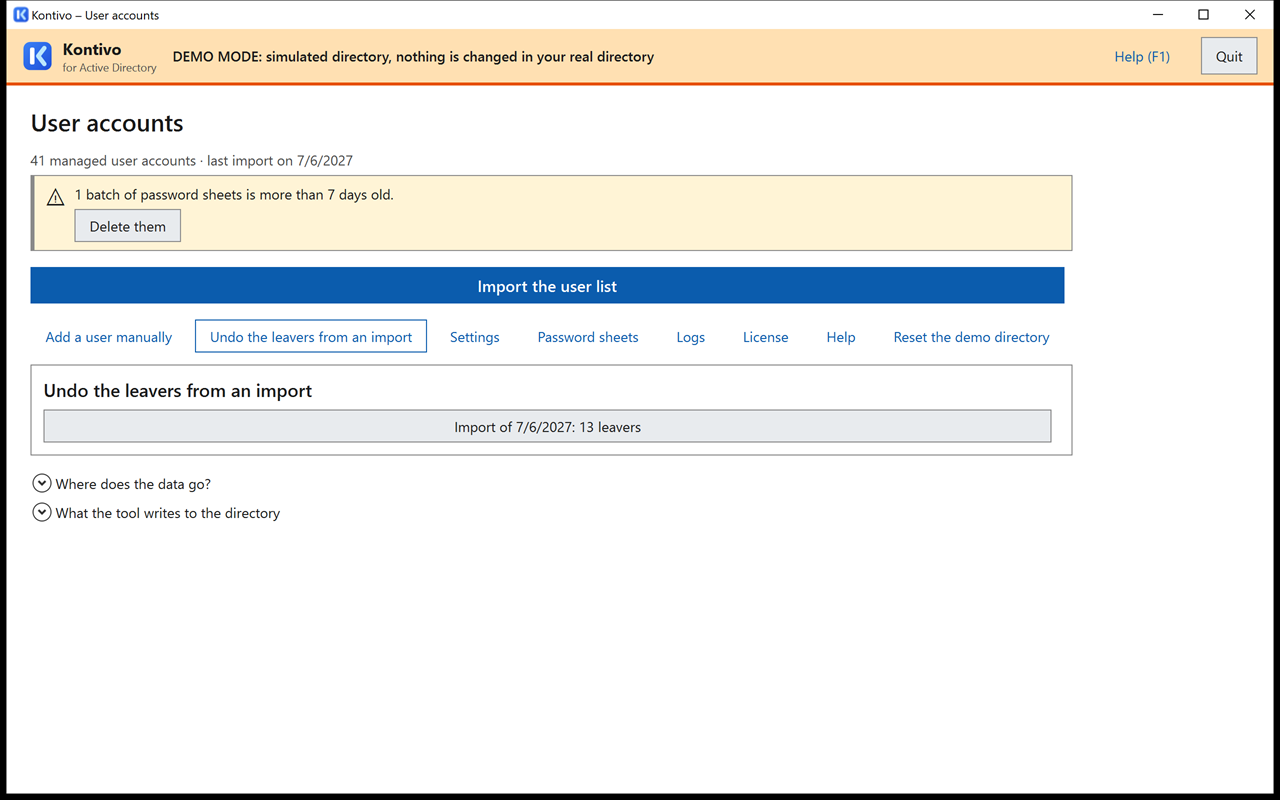
rh-fictif-2.csv and its 13 leavers.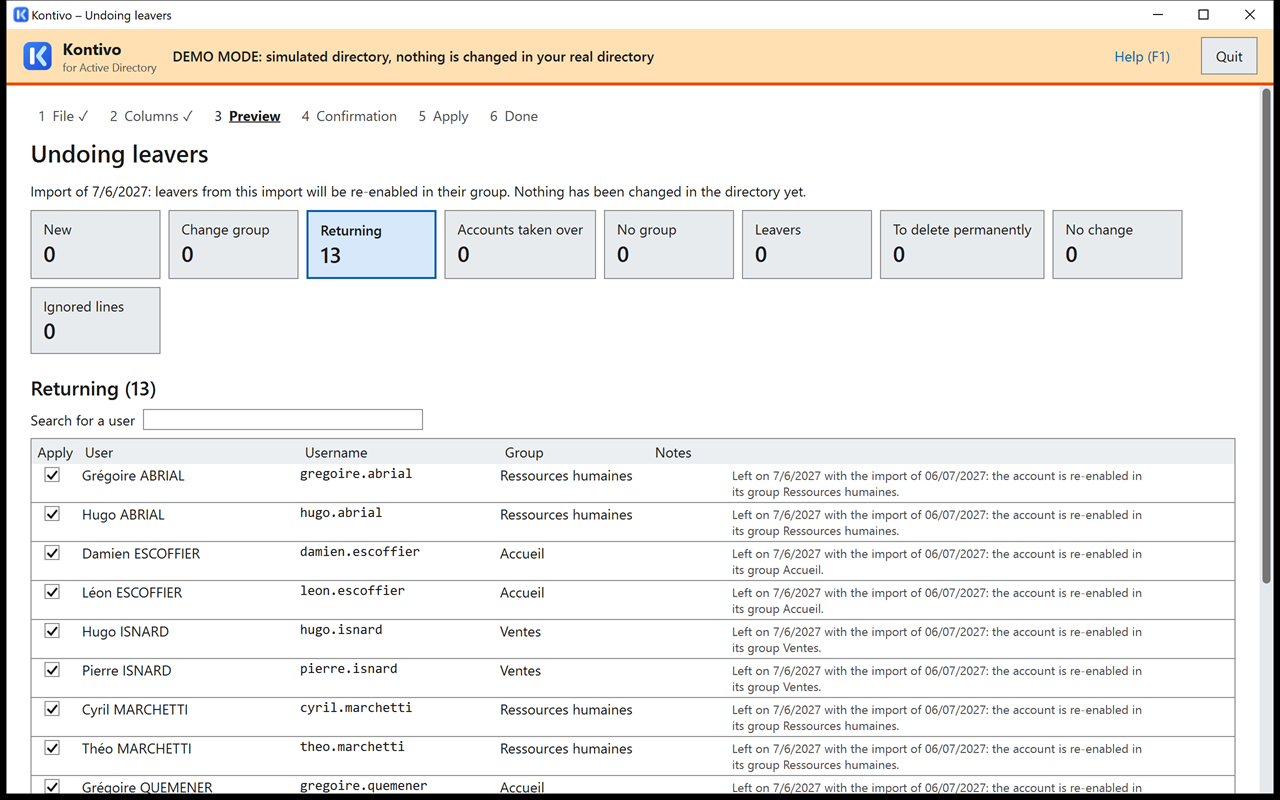
Rolling back a whole import: import the previous file again. Users get their group back, and the departed accounts are re-enabled. The accounts created by the undone import, however, will go into quarantine like leavers.
10. Account sheets (temporary passwords)
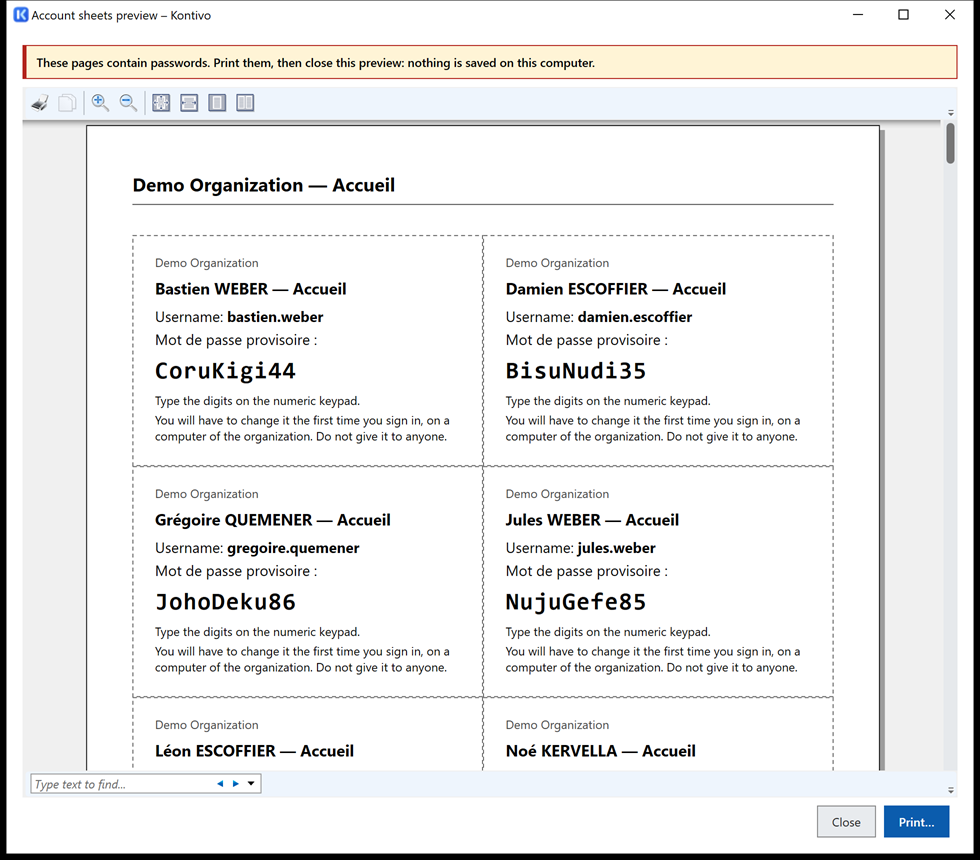
Each new account (and each user who comes back with a new password) has an account sheet: a slip to cut out, with the name of the organization, the user's name and group, their username and their temporary password. One page per group.
- On the “Done” screen, click (all groups), or the button of a single group.
- The window opens on top of the Kontivo window, with the reminder “These pages contain passwords. Print them, then close this preview: nothing is saved on this computer.” Browse the pages, then click : this is the Windows print dialog box, where you choose the printer and its preferences.
- When the printer has finished, the tool asks “Were the account sheets printed correctly?”. Answer : the preview closes. Answer if pages are missing: the preview stays open so that you can print them again. closes the preview without printing.
Printing writes no file: no HTML page, no PDF, no temporary file. The account sheets stay encrypted in their folder and are only decrypted in memory, for the duration of the preview; the passwords are drawn there, not written as text. The preview also closes when the window locks (§ 3.5).
Later, the screen of the home screen lets you reprint them (, or a single group) or delete them.
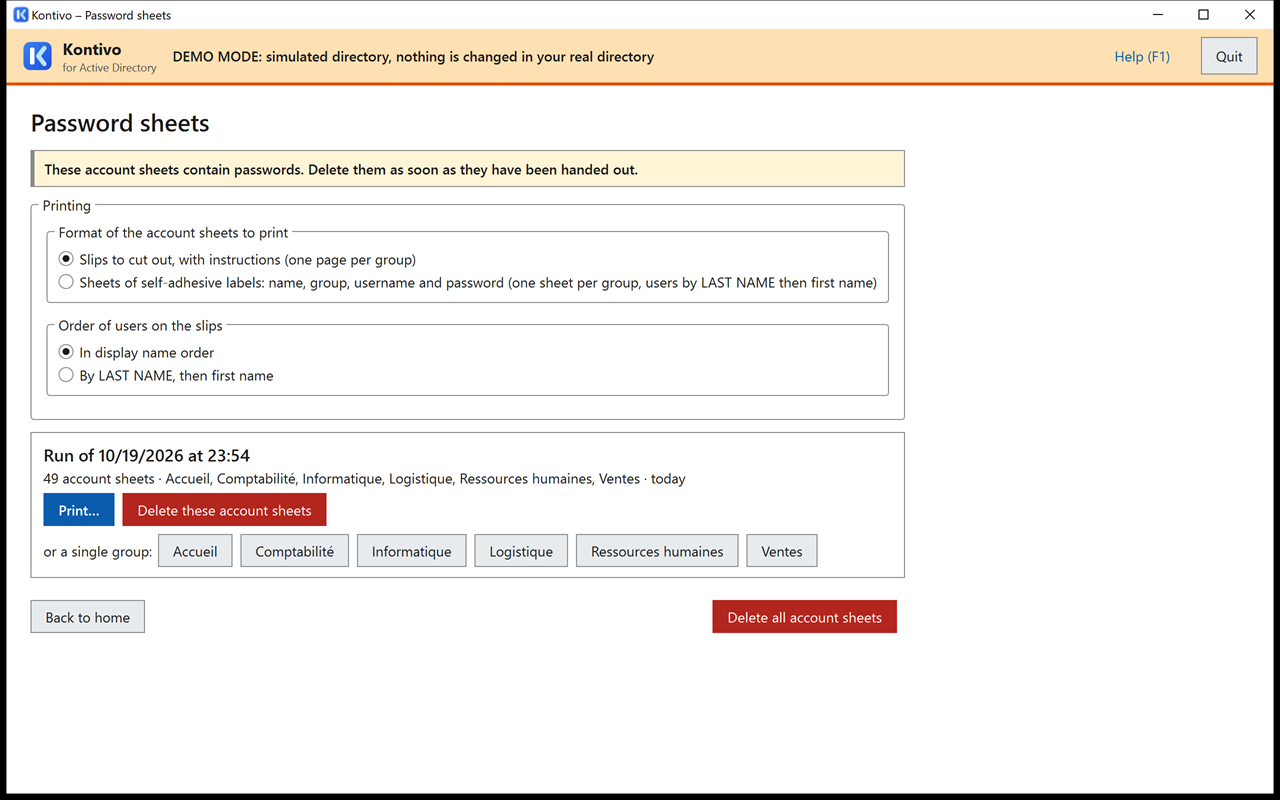
- The account sheets are encrypted on disk for the Windows account that ran the import: only that account can open them again, on this computer.
- Delete them as soon as they have been handed out. The home screen reminds you of account sheets more than 7 days old.
- Do not print to “Microsoft Print to PDF”, “Microsoft XPS Document Writer” or OneNote: the file produced would contain the passwords. If you choose one of these printers, the preview reminds you (“‘…’ writes a file that contains the passwords, wherever you save it: delete it after use.”).
- If the print dialog box does not offer your printer (tool started with the delegated account: the printers connected when your session opened are not that account's), add the printer for that account, or install it for the whole computer. Never print to a file instead.
- Collect the slips that were not handed out and destroy them.
- Deleting a file is not a secure erasure: encrypt the computer's disk (BitLocker).
- The new users' first sign-in must take place on a domain computer: the mandatory password change works neither over 802.1X Wi-Fi, nor over Remote Desktop, nor on a web portal.
Slips or label sheets
On the screen, the frame chooses the form of the pages, before :
- Slips to cut out, with instructions (default, as on the “Done” screen), sorted in display name order or by LAST NAME, then first name;
- Sheets of self-adhesive labels in A4 format: Avery L7160 (21 labels, 63.5 × 38.1 mm, default), L7159 (24 labels, 63.5 × 33.9 mm) or L7163 (14 labels, 99.1 × 38.1 mm), or their equivalents from other brands. Each label shows the LAST NAME and the first name, the group, the username and the temporary password, and nothing else. One sheet per group (a large group fills several), users sorted by LAST NAME then first name.
For the labels to line up exactly, in the print window: scale 100% (actual size, without “Fit to page”), margins None. First do a test on a blank sheet, held against a label sheet, up to the light. Labels follow the same rules as slips: no file written, never printing to a file (PDF, XPS), labels not handed out destroyed.
Label calibration page
Before the first label sheet, and each time you change printers, check that the labels line up exactly with the calibration page. It contains no user data: you can print it and throw it away freely.
- On the screen, frame: choose , then the label sheet model.
- Click . The preview shows a frame in place of each label, two 100 mm graduated rulers and the instructions. Click , at 100% scale (actual size), margins “None”, A4 format.
- Measure the two printed rulers (at the top and on the left): each must be 100 mm long. Otherwise, the printer is scaling the page: correct its preferences and start again.
- Place the sheet on a blank label sheet, edges aligned, up to the light: each frame must fall on a label, within 0.5 mm at the four corners of the sheet.
If all the frames are offset by the same amount, the printer has a physical margin or shifts the page: try the “borderless” option or another tray. If the offset grows toward the bottom or the right, the page is enlarged or reduced: check the scale again. Slips, on the other hand, do not need calibration: they are cut out with scissors.
11. Logs
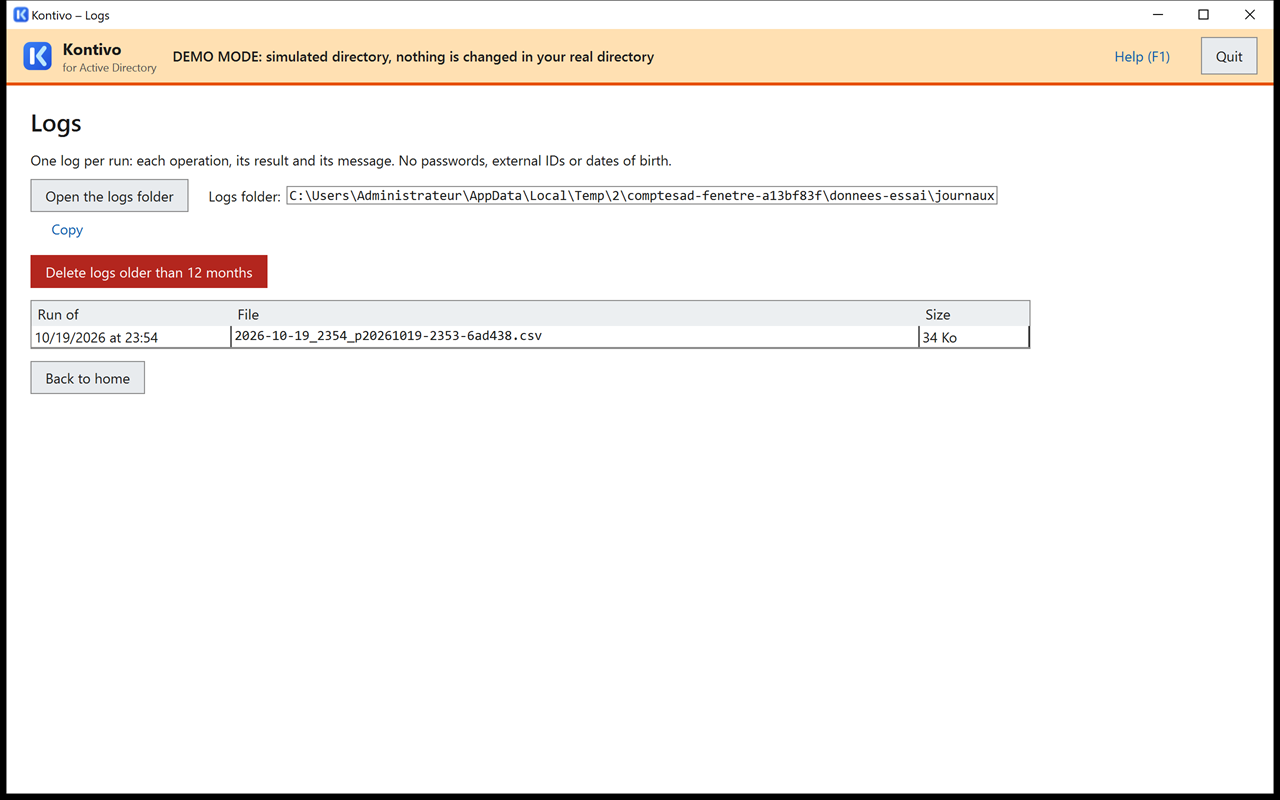
Each run leaves a log: a CSV file (semicolon separator, readable in Excel or LibreOffice) in C:\ProgramData\ComptesAD\journaux\, named after the date, the time and the plan number, for example 2026-10-19_1440_p20261019-1440-7f3a9c.csv. For each operation, it contains: the time, the operator, the computer, the domain controller, the action, the username, the display name, the group before and after, the location before and after, the directory groups removed, the result (OK, Already done, Ignoré for skipped, Erreur for error) and the message. The column headers are the same whatever the language; the messages are written in the interface language (§ 5, “Interface language”).
Next to it, the before snapshot (photo-avant_…csv) lists all the accounts concerned as they were just before the run: username, name, location, enabled or not, group, directory groups. It lets you find the state of an account before an import.
The logs never contain passwords, external IDs or dates of birth. The technique.log file (the tool's internal errors) contains no user data.
From the home screen, the screen lists the logs, opens their folder with the button, next to which the path is displayed (“Logs folder: C:\ProgramData\ComptesAD\journaux”, to copy if the tool was started with an account other than the one of your session), and deletes those more than 12 months old (with their before snapshots).
12. Backing up the configuration and the secret
To recognize each user from one import to the next without writing their external ID to the directory, the tool uses a secret specific to the organization. This secret is on the computer, in C:\ProgramData\ComptesAD\. If it is lost, the tool no longer recognizes users by their fingerprint.
12.1 Export
In , click and choose “The settings and the secret (recommended for a backup)”. The Windows “Save As” dialog box proposes the name ComptesAD-configuration-AAAA-MM-JJ.json (with the date as YYYY-MM-DD): choose where to store it.
This file contains the secret that links users to their accounts. Store it with your backups, like a password, and never on a share that users can access. Export again after each change of settings.
12.2 Changing computers
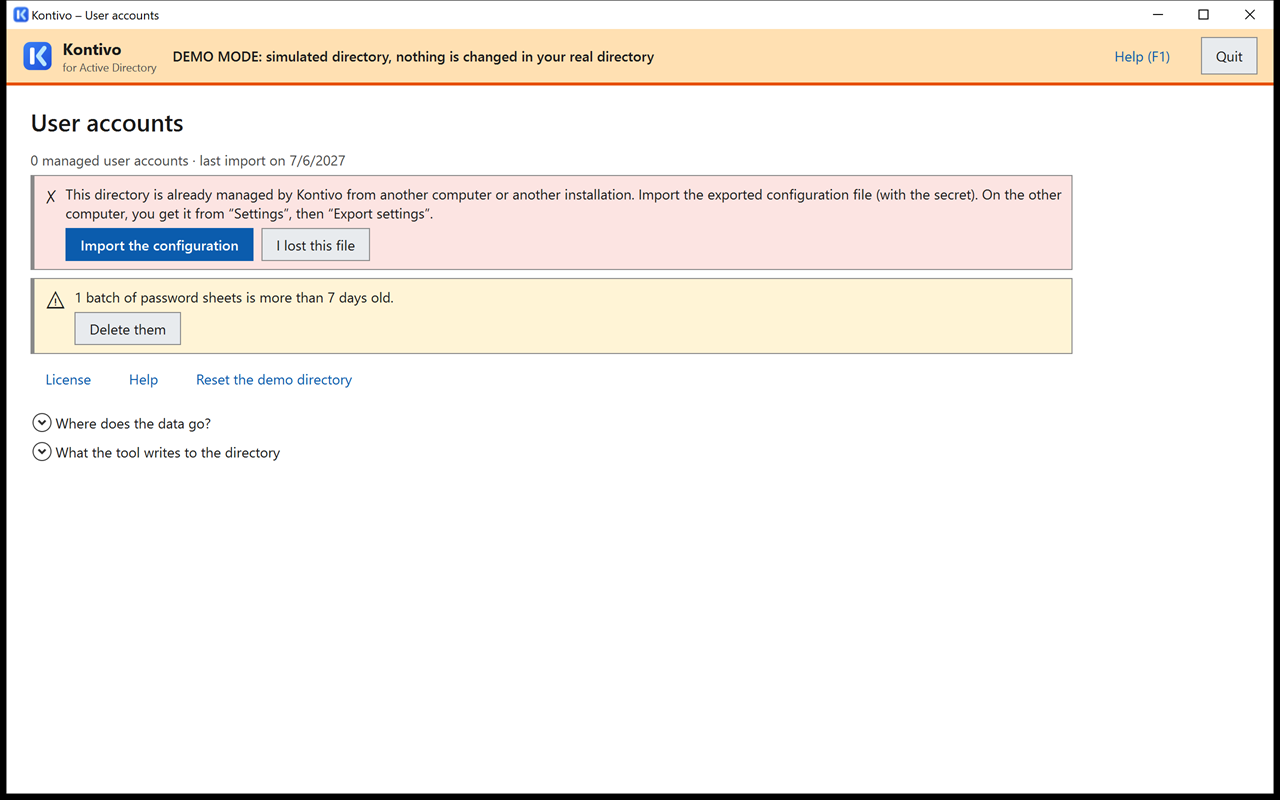
On the new computer, the tool sees that the directory is already managed by Kontivo (a ComptesAD-Etat group is stored in the groups folder; do not delete it). The home screen displays in red: “This directory is already managed by Kontivo from another computer or another installation…”.
- Click and choose the exported file.
- Review the imported settings, then click .
12.3 If the file is lost
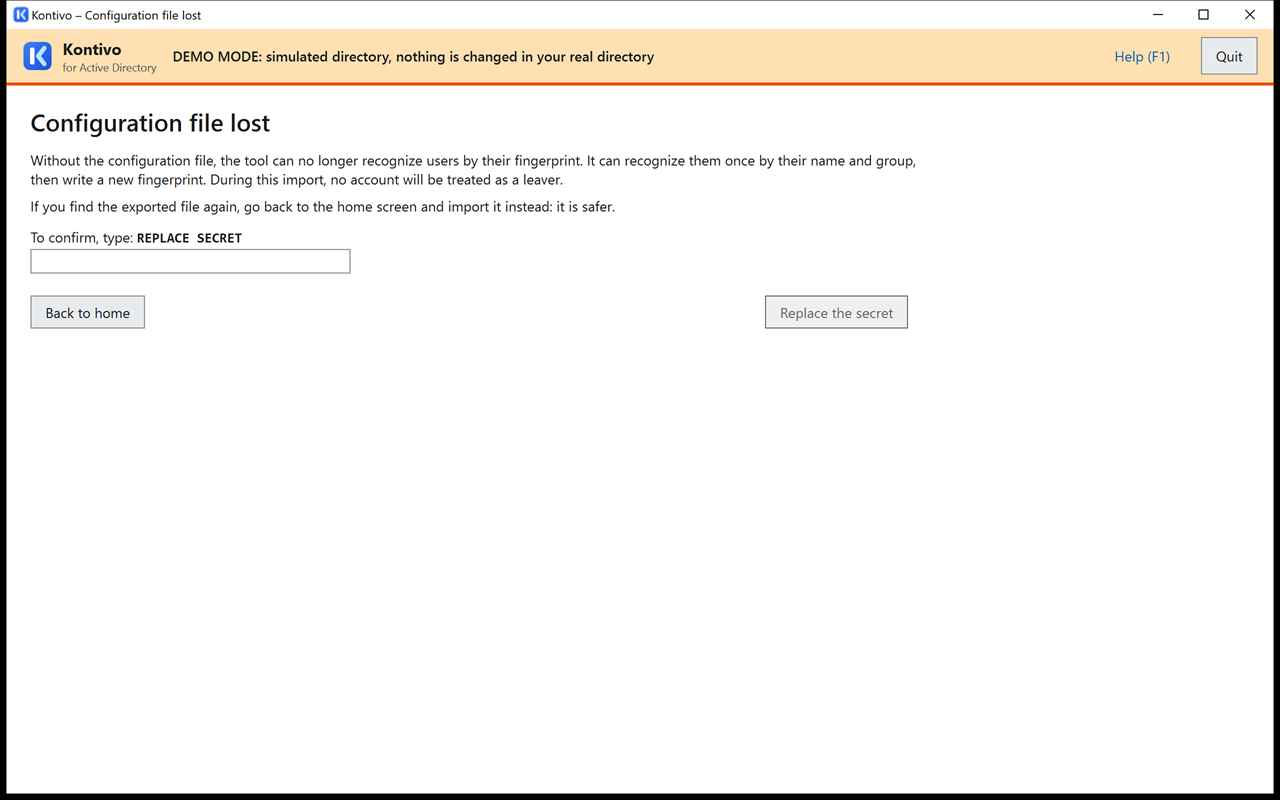
Click , type REPLACE SECRET (the phrase is in the interface language; the French phrase “REMPLACER LE SECRET” is also accepted), then . The tool creates a new secret and has you import the list of users: it then recognizes the users once by their name and group, and rewrites their fingerprint. During this import, no account leaves. The accounts that were not found are listed; they will be processed at the next normal import.
13. What to do if…
The tool does not start
The Kontivo window displays the reason and stays open, with the command to copy when there is one ( button). See the table of messages below.
“This data folder belongs to another account”
Message “The data folder C:\ProgramData\ComptesAD was created for another Windows account (owner: …): your account cannot access it. …”: one account per data folder (§ 3.3, where the message is quoted in full). Three ways out, in the order of the message: start the tool again with that account; have an administrator transfer the folder with the proposed icacls … /T command (after exporting the configuration with the secret from the owner account, to import again afterward); delete the folder if it contains nothing useful.
“No domain controller … responded” at startup
The tool looks for a domain controller that responds over LDAP (TCP port 389). The message says: “No domain controller responded over LDAP (TCP port 389). Check that the computer is in the domain and signed in with a domain account, or specify a domain controller: ComptesAD.exe -Serveur dc1.demo.local”. The usual causes: port 389 filtered between the administration network and the domain controllers, computer outside the domain, session opened with a local account.
The Kontivo window does not appear
If Kontivo is already open, a second start brings its window back to the foreground; if it stays hidden, look for it in the taskbar. If Kontivo is open under another account on the same server, the start says so (“Kontivo is already open by another user on this machine.”): wait until that user has quit it.
“Kontivo is locked”
The window locked after 30 minutes of inactivity (§ 3.5). Click and enter the password of the Windows account that started Kontivo (the one the message names, for example the delegated account, not the one of your session). A run in progress continued during the lock. After three refused passwords, quit Kontivo ( button of the overlay) and start it again: an interrupted run can be resumed from the home screen.
The run was interrupted
Window closed, power outage, restart: at the next start, the home screen displays “A run was interrupted on … (140 of 612).”
- : the tool resumes where it stopped, on the same domain controller. Operations whose outcome is unknown are replayed safely. A password that may or may not have been set is replaced by a new one, with a new account sheet.
- : the changes already made remain in place; run a new preview to see what is left.
Resume without delay. After 12 hours, or if another run has taken place in the meantime, resuming is refused: the home screen only offers , with the explanation (“It is more than 12 hours old: resuming it would redo changes calculated from an outdated file and directory.”). Nothing is lost: the new preview proposes what remains to be done.
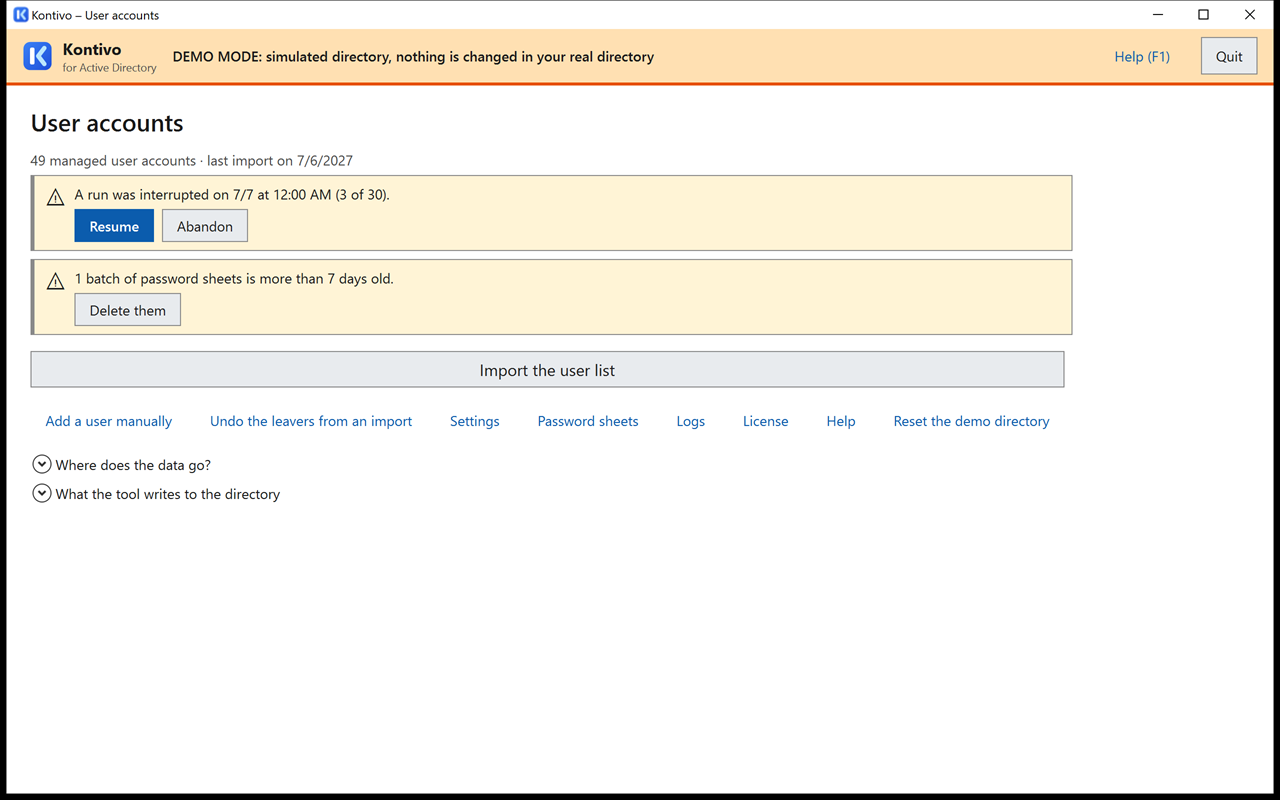
An account is not recognized, a duplicate is created
The existing account may not be in the users folder, or the file has neither an external ID nor a date of birth. In the preview, look at the “To check” card: the tool asks a question there when several accounts may match, and it never takes over a doubtful account by name alone (another date of birth, departed account): it then proposes a new account and the question “Same user?”. Answer it before applying, otherwise the new account is created (see § 7.3). An account managed by the tool but moved out of the users folder is not duplicated either: its line says “This user's account was moved out of the users OU (…): it is not changed, and no other account is created. Move it back into the users OU so that the tool keeps track of it.”
An account created manually is never changed
This is intended: an account that the tool neither created nor took over is never changed, and never leaves. The preview reports them (“Unmanaged accounts in the users OU: 3 (never changed)”). The tool takes over such an account when it recognizes the user (“Accounts taken over” card): username and password kept.
An account is “protected from accidental deletion”
It cannot be moved (change of group, leaving) or deleted; the tool checks this before touching it, so the account is neither renamed nor half-changed. The message says what to do: “This account is protected from accidental deletion: in ‘Active Directory Users and Computers’, View menu > Advanced Features, account properties, Object tab, clear the check box; or use ‘Remove protection from these accounts’ in the preview. Then run a new preview.” (the preview button requires the right to modify permissions). A managed account protected in another way (exclusion in the settings, adminCount) is not touched either: the preview says so on its line (§ 7.3).
A directory group has a short name ending in “-2”
The tool limits the short name (pre-Windows 2000 name) of a group, which must be unique in the domain, to 20 characters. If it is already taken by another object, the tool adds -2, -3… The settings (step 2) show these short names. You can rename a group created by the tool: it recognizes it by an internal marker, not by its name.
Another person is using the tool at the same time
Only one run at a time is possible: “A run is in progress from PC-ADM1 by DEMO\adm2 (since 2:40 PM).”. Wait for it to finish. The lock expires 30 minutes after the last sign of life from the other computer; a button then lets you force it (by typing FORCE, in the interface language), if you are sure that no run is still in progress there.
Microsoft 365, ENT and other services
The tool only manages the local directory. If synchronization to Microsoft 365 is in place, check that the “Leavers” folder is within its scope if you want to keep the Microsoft 365 data of users in quarantine.
The antivirus or endpoint security blocks the tool
Kontivo is a single exe, ComptesAD.exe, with no script to allow. Three cases:
- SmartScreen displays “Windows protected your PC” at first start: see § 2. To prevent each extracted file from being marked “from the Internet”, check in the properties of the archive before extracting it (§ 3.1).
- An antivirus or an EDR blocks the exe or quarantines it (the exe is obfuscated, see § 2): ask your chief information security officer (CISO) for an exception based on the published SHA-256 hash, or for the non-obfuscated variant.
- AppLocker or WDAC only allow approved programs: ask your administrator for a rule that allows
C:\ComptesAD\ComptesAD.exe(by its publisher if it is signed, otherwise by its hash), or use an administration computer that does not have this restriction.
The tool is started from a share or a network drive
It refuses to start, and the window says so. From a share (path \\server\…): “Kontivo is running from a network share (\\srv\outils$\ComptesAD). Copy ComptesAD.exe to the computer's local disk, for example to C:\ComptesAD, then start it again.” From a network drive (Z:): “Kontivo is running from a network drive (Z:\ComptesAD). Copy ComptesAD.exe to the computer's local disk, for example to C:\ComptesAD, then start it again.” The data folder must also be on a fixed local disk (§ 3.3).
Windows opened a temporary profile
If Windows displays “You've been signed in with a temporary profile”, the tool warns you at startup (“Warning: Windows signed you in with a TEMPORARY profile (…)”, full text in § 3.5): everything in your profile (password sheets, the key that encrypts them) will be lost when you sign out. Print the account sheets before signing out, and do not run any import until the profile is repaired.
14. Main error messages
| Message (beginning) | What to do |
|---|---|
| The folder … can be modified by … Someone could place code there that would run with your rights. Fix it …, with the command below, then start again. | An administrator types the icacls command displayed under the message ( button) in a command prompt opened as administrator, then start again (see § 3.3). |
| The folder … belongs to an account that is neither an administrator nor yours (…). Delete it, or fix it …, with the command below, then start again. | Command icacls … /setowner "*S-1-5-32-544" /T displayed under the message, to be typed by an administrator (see § 3.3). |
| Kontivo is running from … (…). Copy ComptesAD.exe to the computer's local disk, for example to C:\ComptesAD, then start it again. | The first “…” says where the exe is: a network share, a network drive, removable media (USB drive, external disk), a CD or DVD. Copy ComptesAD.exe and docs\ to C:\ComptesAD\, on the local disk (see § 3.1). |
| The data folder … was created for another Windows account…: your account cannot access it. Kontivo reserves each data folder for a single operator, because the organization secret is encrypted there for that operator. … | One account per data folder: start again with that account, or transfer by an administrator with the icacls … /T command displayed, or deletion of the folder (see § 3.3). |
| Your account cannot read the tool's folder …: its permissions were set for another Windows account. An administrator can give you read access …, with the command below; then start again. | Command icacls … RX" /T displayed under the message, to be typed by an administrator (see § 3.3). |
| The folder … is on …: it would contain the organization secret and user data (DONNEES_SUR_PARTAGE). Specify a folder on the computer's fixed local disk, for example …, then start again. | Data folder on a share, a network drive, a USB drive, a CD or a RAM disk: specify a folder on the local disk (the example in the message is ComptesAD.exe -DossierDonnees "C:\ComptesAD-donnees"), or keep the default folder. For a \\server\… path given to -DossierDonnees, the message is “The data folder cannot be on a network share (…): it would contain the secret and user data.” |
| Information: Kontivo is running as administrator (elevated token). Elevation is never needed… | Information. Start again without elevation (double-click ComptesAD.exe), except on a domain controller. |
| The parameter -… was removed along with the web interface: Kontivo opens in its own window. | The parameters of the former web interface (-InterfaceWeb, -SansNavigateur, -FichierUrl, -Port, -Web, -Docs) no longer exist: remove it from the command or the shortcut. |
| Unknown language: “…”. Available languages: fr, en, de, es, pt, it. | Correct the -Langue option of the command or the shortcut (§ 3.5). |
| Kontivo is locked after … of inactivity. | Click and enter the password of the account that started Kontivo (§ 3.5). |
| Warning: Windows signed you in with a TEMPORARY profile (…)… | Print the account sheets before signing out; have the profile repaired before any import. |
| Kontivo could not start (incident …, details in …): … | Read the end of the message; the technical details (without user data) are in the technique.log file named. Without an incident number, the message is “Kontivo could not start: …”: its end gives the cause. |
| Kontivo is already open by another user on this machine. | Only one user at a time on the same server: wait until that user has quit the tool. |
| No domain controller responded over LDAP (TCP port 389). Check that the computer is in the domain and signed in with a domain account, or specify a domain controller: ComptesAD.exe -Serveur dc1.demo.local | Computer in the domain, session with a domain account, TCP port 389 open to the domain controllers; otherwise specify a domain controller with -Serveur (see § 13). |
| “…” is not a domain controller of …: enter the full name of a domain controller (for example dc1.…), or leave the field empty to let the tool choose one. | Correct -Serveur or annuaire.serveur: the full name of a domain controller, or nothing (see § 5.4). |
| This directory is already managed by Kontivo from another computer… | Import the exported configuration, with the secret (§ 12). |
| The secret on this computer does not match the directory's secret. | Import the configuration exported from the computer that manages the directory. |
| Your users match … by name, but almost none by fingerprint: the secret on this computer is probably not the right one. Import the exported configuration. | Import the exported configuration, with the secret (§ 12). |
| This STS-Web file describes staff… | This is not the right SIECLE export: see Recognized school formats. |
| File format not recognized. Try saving the file as CSV or XLSX. | Open the file in your spreadsheet program and save it as CSV or XLSX. |
| The ZIP file is password-protected… | Save the export without a password. |
| File too large: 60 sheets, 20,000 lines and 200 columns at most. | Remove the unneeded sheets or columns. |
| This file comes from another organization (ID …). | Check the export, or the organization ID entered in the settings (step 1). |
| …% of the lines have no …: is the chosen column correct? | Go back to the Columns step and correct the last name, first name or group column. |
| The column “…” gives the level (6EME, 2NDE GT…), … | Message specific to school exports: at the Columns step, choose the Division column for “Group”, not the level column (see Recognized school formats). |
| The sheet … does not have the columns of the sheet …: it is not read, and its users will not get an account. | Give all the sheets of the workbook the same column headers, or import this sheet separately. |
| Two lines have the same name in the same group, with no external ID or date of birth to tell them apart… | They are two accounts. If a line is a duplicate, remove it from the file. |
| The file contains … users for … accounts. If you are only importing new users, choose “New users and changes only (no leavers)”… | The file seems partial: choose “New users and changes only” or “Only the groups present”, or use a complete export. |
| All users are in the same group… | Check the Group column, or choose “Only the groups present”. |
| … (…%) …: this is almost certainly an incomplete file or a file from another organization. | For example “412 users (38%) would be disabled: …”. Check the file; if needed, raise the refusal threshold in the settings (“Advanced” panel). |
| Partial import: … out of … A user missing from their group's list may only have changed group: only confirm the leavers you are sure of. | Only check the leavers you are sure of, then type the requested phrase. |
| … out of … (…%) … group. This is normal during a reorganization; otherwise, check the column chosen for the group (a level, option or subgroup column is not the group). | For example “140 users out of 612 (23%) change group…”. During a reorganization: type MOVE n (combined with the other phrases). Otherwise, check the Group column. |
| … out of … (…%) … (first name, last name or display name): check that the Last name and First name columns are not swapped, and that the preferred last name is intended. | For example “52 accounts out of 612 (8%) will be renamed…”. Check the Last name and First name columns and the preferred last name, then type RENAME n. |
| The group … is a member of an administrative group (or has adminCount = 1)… | Blocking: remove the group from that administrative group (and reset adminCount to 0), then run the preview again. |
| … out of the users OU (…): … into the users OU so that the tool can track …. | Information, for example “3 accounts managed by the tool have been moved out of the users OU (…): they are no longer changed (neither group nor leaving). Move them back into the users OU so that the tool can track them.”: move these accounts back into the users folder. |
| The group … will have the short name (sAM) …: … is already taken in the directory… Users will not be in this old group. | If the old group is in use (Group Policies, shares, password policy), move it to the groups folder, with exactly this name, before applying (§ 5.2). |
| This file is for the year …: check that it is the intended export (year chosen in SIECLE). | Confirm if this is intended; otherwise, run the export again for the right year. |
| Your account cannot create … in “…”: delegate the rights (see the user guide) or use another account. | Delegate the rights (Delegating rights) or use another account. |
| The file is no longer in memory (more than an hour, or a new analysis)… | Drop the file again. |
| The preview is more than an hour old. | The tool reads the directory again on its own and highlights the lines that have changed: review them, then confirm again. |
| Insufficient rights | Your account lacks one of the necessary rights: compare with Delegating rights. On a domain controller, start the tool from an administration computer instead. |
| This account is protected from accidental deletion: in “Active Directory Users and Computers”, View menu > Advanced Features… | Follow the message, then run a new preview (see § 13). |
| This run was interrupted more than 12 hours ago: resuming it would redo changes calculated from an outdated file and directory. Abandon it, then run a new preview with an up-to-date file. | Resuming is refused: , then run a new preview with an up-to-date file (see § 13). |
| Another run has taken place since this interruption: resuming it would redo changes calculated from an outdated file and directory. Abandon it, then run a new preview with an up-to-date file. | Same as above. |
| OU created, but protection from accidental deletion was not set (missing the “modify permissions” right on the parent OU): an administrator can set it in Active Directory Users and Computers (Object tab of the OU). | Log note, operation successful: the group OU exists, without protection. See Delegating rights, § 3. |
| Password refused by the domain policy | A stricter password policy applies to the users: choose the “Strong” format, or check the users' fine-grained policy. |
| Username already used | Likewise “Name already used in this folder” and “Sign-in username (UPN) already used in the forest”: an object was created between the preview and the run. Run a new preview; the tool will choose another username. |
| The domain controller … does not respond. | Check the network and the domain controller, then , or abandon and run a new preview. |
| Paused: … errors in a row (“…”). Fix the problem, then resume, or stop here. | Fix the cause indicated, then , or . |
| Unable to create the home folder (permissions on the share?). | Give the account the Modify permission on the root of the share (Delegating rights). |
| Folder created, but the user's permission could not be granted (…). | The account must be able to modify the permissions of the folder it created: see Delegating rights. Then grant the permission manually. |
| Unable to archive the home folder (permissions on the share, or file open?): it stays in place. | Nothing is lost: move the folder manually into _archives, or leave it. |
| The folder … already exists and does not belong to this user (former user?): it was not assigned to them and could not be archived… | Nothing is lost: archive or rename this folder manually, then run a new import; the tool will then create the user's folder. |
| These account sheets were created by another Windows account: only that account can open them. | Start the tool again with the account that ran the import. |
| Internal Kontivo error (incident …). | Note the incident number: the technical details, without user data, are in C:\ProgramData\ComptesAD\journaux\technique.log. |
15. What the tool writes to the directory
Last name, first name, display name, group, username and sign-in name, description (according to the template in the nommage.description key of configuration.json: for a new installation, “{classe} (managed by Kontivo)”, and “Awaiting group (managed by Kontivo)” for a user without a group; a configuration from V1 or V2 keeps its description, see § 3.7), and, if configured, the home folder, the drive letter, the profile and the logon script. Plus two technical attributes:
employeeType: a marker saying that the account is managed by the tool, and its state (present, left…). Do not change it;employeeNumber: encrypted fingerprints of the external ID (and, for a SIECLE export, of the SIECLE number), and of the last name with the first name and the date of birth, calculated with the organization secret. They make it possible to recognize the user at later imports, but do not make it possible to recover this information as long as the secret stays secret.
The tool never writes the date of birth or the external ID to the directory: all accounts in the domain, users included, can read this information. It does not touch the users' info and employeeID attributes (unless you ask it to clear an external ID found in plain text in employeeID). Nor does it write the external ID, the SIECLE number or the date of birth to its own files (logs, plans, account sheets).
The groups created by the tool are global security groups, in the groups folder, recognized by a marker in their adminDescription attribute. The ComptesAD-Etat distribution group, with no members, keeps the state of the tool: do not delete it.
Nothing that the tool writes to the directory depends on the interface language: descriptions, OU names, markers. Two computers set to two different languages therefore manage the same directory in the same way. Only the values proposed to a new installation (OU and group names, descriptions) follow the language of the first settings; once written to configuration.json, they no longer change with the language.
Never changed: administrative accounts (even if stored by mistake with the users), the accounts in your “never to touch” list, the accounts in the users folder that the tool neither created nor took over, and everything outside the three chosen folders.
16. Other documents
- Exporting school files (in French): the step-by-step guide for SIECLE, ONDE, Pronote and EcoleDirecte exports, and the expected columns (see also Recognized school formats).
- Delegating rights: the exact rights of the account that starts the tool, in the directory and on the home folder share.
- GDPR record sheet (in French): the processing record to fill in with your data protection officer.
- The same documents in the other languages:
docs\fr\,docs\de\,docs\es\,docs\pt\anddocs\it\(Notice.html,Deleguer-les-droits.html,LISEZMOI.txt); at the root of the archive,LISEZMOI.txt(in French) andREADME.txt(in English). The two pages above about school files and the GDPR record only exist in French, indocs\fr\. - The first run on a test OU, before going into production: see § 6.
Kontivo 3.0.0, for Active Directory · © 2026 · proprietary software (see LICENCE.txt) · the names in the screenshots are made up · Active Directory is a trademark of Microsoft.